
You change your wifi password in your router settings at home. Your provider app does the job, or the router page in a browser can do it. The change itself takes about five minutes, and the reconnection takes a little longer. Every device in the house then needs the new password.
Most people put this job off for years. The old password stays on the router sticker, and old guests keep using it. This guide shows how to change your wifi password in one short session. It covers the router page, the provider apps, strong passwords, and every device after the change.
At a Glance
- Change it in the router settings or your provider app.
- Pick 12 or more characters, mixed, and never reuse an old password.
- Use WPA3 if your router offers it, or WPA2 with AES.
- Reconnect phones first, then laptops, TVs and smart gadgets.
- Write the new password down and keep it by the router.
The Quick Method: Change It in Five Minutes
Sign in to your router at its address. Open the wireless settings and type the new password, then save. Your wifi drops for a moment, then you reconnect each device with the new password. Learning how to change your wifi password takes less time than most people expect.
You have two routes to the same settings. The router page works for any router, and it needs no app. The provider app is faster when your broadband firm supplies the router. It also suits a phone screen, so pick the route that fits your kit.
Before You Start: Three Things to Gather
A little prep stops the job stalling halfway. Decide the new password before you open any settings page. Find the router label, since it holds the admin login and the router address. Make a quick list of every device that uses your wifi.
- A new password, 12 or more characters, with letters, numbers and a symbol.
- The router admin username and password, from the label on the router.
- A list of devices: phones, laptops, the TV, printer, doorbell and smart speakers.
- A phone or laptop already on the wifi, or an Ethernet cable for a wired link.
Do the job from a device you can reconnect with ease. A laptop with an Ethernet cable is the safest choice. The cable stays live when the wifi drops. If you only have a phone, keep the provider app open and the new password copied.
How to Change Your Wifi Password on the Router Page
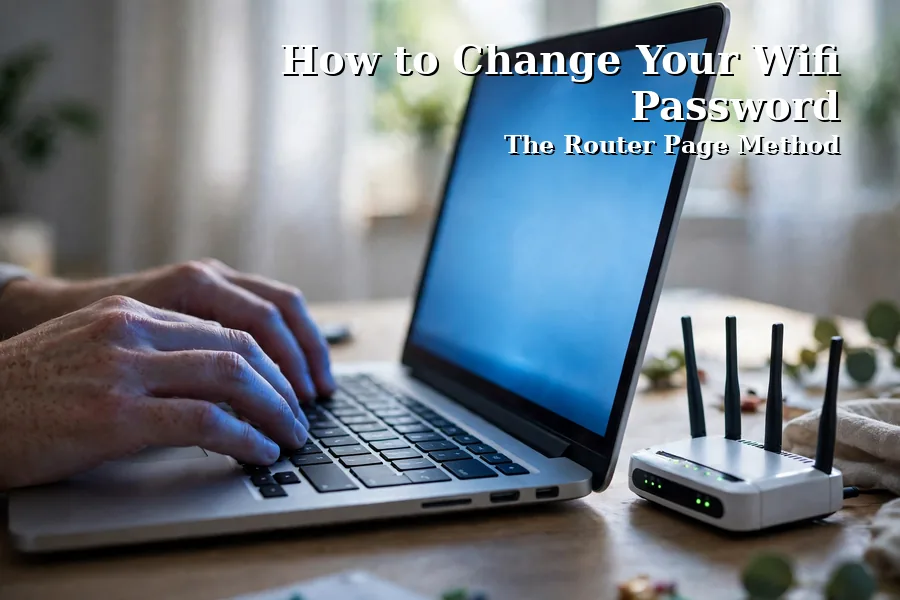
The router page is the general method, and it works on any router. Open a browser on a device that is already on your wifi. Common addresses are 192.168.1.1 and 192.168.0.1. The right one sits on the router label.
- Type the router address into your browser and press Enter.
- Sign in with the admin username and password from the router label.
- Open the Wireless, Wi-Fi or WLAN settings.
- Find the field named Password, Passphrase or Pre-Shared Key.
- Type or paste the new password into that field.
- Set security to WPA3 or WPA2-Personal with AES.
- Click Save or Apply and wait for the wifi to restart.
- Reconnect your device with the new password.
The admin login is not the wifi password. The admin login guards the settings page, while the wifi password lets devices join the network. If the label login fails, check the capital letters first. Then see the fixes near the end of this guide.
Routers with two bands show 2.4 GHz and 5 GHz networks side by side. Change the password on each band you use, or set both to the same new password. The 2.4 GHz band reaches further through walls. The 5 GHz band runs faster at close range.
Change It in Your Provider App Instead
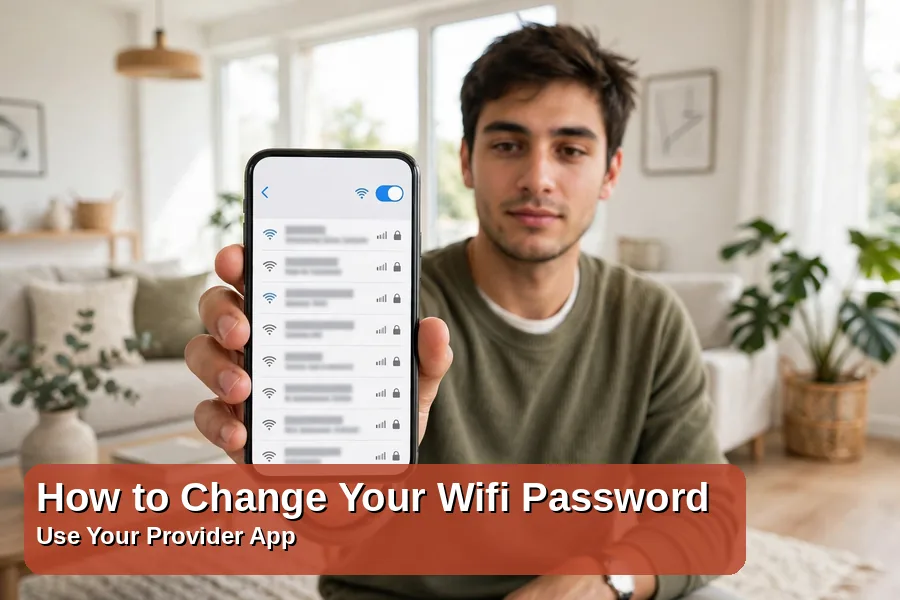
Most UK broadband firms now let you change the password in their app. This guide shows how to change your wifi password through the apps. Sign in with your broadband account. Open the wifi or hub settings and save the new password there.
BT customers open the My BT app and tap the wifi settings for their Smart Hub. The BT Hub Manager in a browser works too, at the hub address on the label. Change the password, save, and the hub restarts its wifi.
Virgin Media customers use the Connect app and open the wifi settings for their Hub. Sky customers open the My Sky app and find the Broadband Hub settings. TalkTalk customers sign in to My Account and open the wifi settings for their router. Each app asks you to save, then every device drops off until it rejoins.
Pick a Password That Stays Strong
A strong wifi password is long and random, not clever. Aim for 16 characters or more. Use a mix of upper and lower case letters, numbers and symbols. A short phrase of four random words works well too.
Skip names, birthdays, addresses and pet names, and skip the old password with one digit changed. A password manager can build and store the new password for you. The National Cyber Security Centre gives plain advice on strong passwords. See its top tips for staying secure online.
| Setting | What it means | When to use |
|---|---|---|
| WPA3-Personal | The newest home wifi security | Use it when every device supports it |
| WPA2-Personal (AES) | Strong security that suits most homes | Use it for older devices |
| WEP or Open | Old and weak, or no password at all | Never use these |
Check the security setting while you are on the page. WPA3 is the best choice when your devices support it. WPA2 with AES suits homes with older gadgets, while WEP is old and weak. An open network has no password at all, so avoid both.
Reconnect Every Device in the House
Every device that knew the old password now needs the new one. Start with the phones and laptops you use each day. Then move to the TV, the printer and the game console. Smart gadgets come last, since each one has its own way of joining a network.
- iPhone: open Settings and tap Wi-Fi. Tap the network name, then tap Forget This Network and join again.
- Android: open Settings, then tap Network and Internet and Wi-Fi. Tap the network, then tap Forget and join again.
- Windows: open Settings, then tap Network and Internet and Wi-Fi. Tap Manage known networks, then forget and rejoin.
- Smart TV and console: open the network settings and type the new password when asked.
- Printer, doorbell and smart speaker: use the device app to join the network again.
A phone that holds the old password will keep trying it and fail. Forgetting the network clears the old password, so the new one goes in clean. A fresh password will not speed up a slow network. If pages still crawl, read our guide on how to speed up your wifi.
Keep a written copy of the new password by the router. A phone can hold it too, in a password manager or a note. Guests can scan a QR code if your router app prints one. That beats spelling the password out loud.
If It Goes Wrong: Quick Fixes
Most faults after a password change have a short fix. Work through the list below before you reset anything. A reset wipes every setting on the router, so it stays the last resort.
- Router page will not load. Check the device is on the wifi and the address on the label. Try an Ethernet cable.
- Admin login fails. Check caps lock and try the password on the label. Look for a changed password in your notes.
- Device will not reconnect. Forget the network on that device, then join again with the new password.
- Some gadgets stay offline. Check they are on the right band. Smart gadgets often need the 2.4 GHz network.
- Wifi still slow after the change. The password was never the cause. Check the usual faults in our guide to fixing common tech problems.
A factory reset is the last step when the admin password is lost. Press the small reset hole on the router for ten seconds with a paperclip. The router returns to its label settings, and you set the wifi password from scratch. Write the admin password down this time, so the reset stays a one-off.
Questions People Ask About Wifi Passwords
How often should I change my wifi password?
You do not need a fixed schedule. Change it when the password is weak or still the sticker default. Change it too when someone who had it should not have it any more. Change it when you think a neighbour is using your network.
Can I change my wifi password from my phone?
Yes. Your provider app or your router app does the job from a phone. The steps above show how to change your wifi password from a phone. A laptop with an Ethernet cable is steadier, but a phone works fine.
Will changing my wifi password disconnect everything?
Yes. Every device drops off at once when you learn how to change your wifi password. Each one needs the new password to join again. Pick a strong password once, write it down, and the round will not repeat for years.
What is the difference between the wifi password and the router admin password?
The wifi password lets devices join your wireless network. The router admin password guards the settings page. That page is where you change the wifi password and other options. Never leave the admin password at the factory default printed on the label.
I forgot my wifi password. How do I find it?
Look on the router label first, since it prints the factory password. If the password was changed, check the saved network. A Windows laptop shows it under the network properties. A phone shows it in the wifi details.
One Small Job That Keeps Your Home Network Yours
Five minutes of work buys years of quiet. Now you know how to change your wifi password and reconnect every device. Old devices stay out, and guests can join with a quick scan. For more practical fixes, browse our Tech section.