Start with the simplest checks when tech stops working at home. Restart the device first. Then check its power and connection. Test one change at a time. Most everyday faults clear with that calm order, not with a new device. This guide shows how to fix common tech problems without guesswork or panic.
Work through the sections in order, and skip the ones that do not match your fault. Each section gives a short answer first, then the steps that follow it. Browse our Tech archive for step by step guides on single faults.
At a Glance
- Restart first, then check power, cables and wifi in turn.
- Test whether one device or every device has the fault.
- Free space, update software and back up files each month.
- Use a wired test to tell a wifi fault from a line fault.
- Stop and get help for heat, swelling, smoke or a dead drive.

How to fix common tech problems
How do you fix common tech problems at home? Start with a restart. Then check power, cables and wifi. Change one thing at a time and test it. Note what changed just before the fault, such as an update or a new app. That order is how to fix common tech problems without panic. It also shows when expert help is the right next step.
One change at a time matters more than speed. If you change five settings at once, you will not know which one helped. Write down each step you try, in plain words. That note also helps a repair shop or a support agent later.
Keep safety first through every fix in this guide. Do not open a phone, laptop or power supply yourself. Do not use a frayed cable, a swollen battery or a charger that smells hot. Unplug the device and get advice if you see any of those signs.

Work out what is actually wrong
Ask whether the fault hits one device or every device in your home. One device points to that device, its app or its cable. Every device points to wifi, the router or the broadband line. That single split saves hours of random fixes.
Ask when the fault started, and what changed just before it. A new app, an update or a moved router all leave clues. If the fault started after an update, check for a second update or a known fix. If it started after a move, check cables and router position first.
- One device only: check its settings, app, cable and battery.
- Every device: check the router, the line and the provider status.
- One app only: update it, clear its cache or reinstall it.
- After an update: look for a patch, then roll back the app if you can.

A laptop or phone that feels slow
Slow devices often suffer from full storage, too many start up apps or old software. Close apps you do not need, then restart the device. Check for updates, then look at free storage space. Our guide to speeding up a slow laptop walks through those steps in detail.
Free space helps more than most people expect. Delete large files you no longer need, and move photos to a backup. Uninstall apps you have not opened in months. Aim to keep at least a tenth of the drive free, so the system can work.
Heat also slows a device down, so give vents room to breathe. Keep a laptop on a hard flat surface, not on a bed. Brush dust from vents with care, and never block them with a case. If heat stays high after cleaning, get the device checked.

Wifi that drops, crawls or vanishes
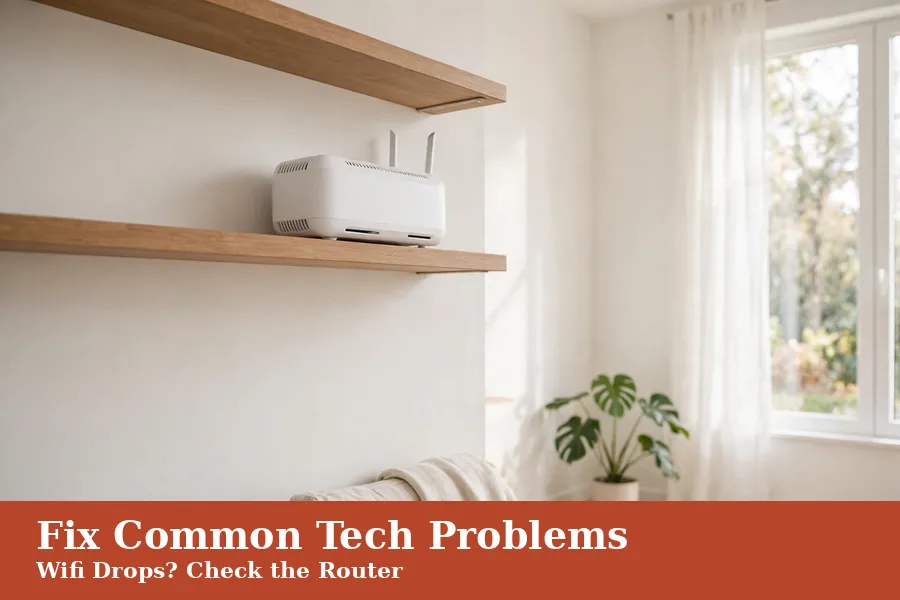
Wifi trouble starts with the router, not with your laptop. Restart the router, wait a full minute, then test again. Move closer to the router and test once more. If speed returns near the router, distance or walls are the cause. Ofcom’s guide to staying connected gives the same router checks in full.
Place the router high, central and clear of thick walls and metal. Keep it away from microwaves, baby monitors and fish tanks. Those items can weaken the signal in a real way. A wired test with an Ethernet cable then tells you if the line itself is slow.
Too many devices can also crowd one connection. Pause large downloads and video streams during a test. Switch off wifi on devices you are not using. Our guide to speeding up your wifi covers router position and crowded networks step by step.
A phone or laptop that will not charge or turn on
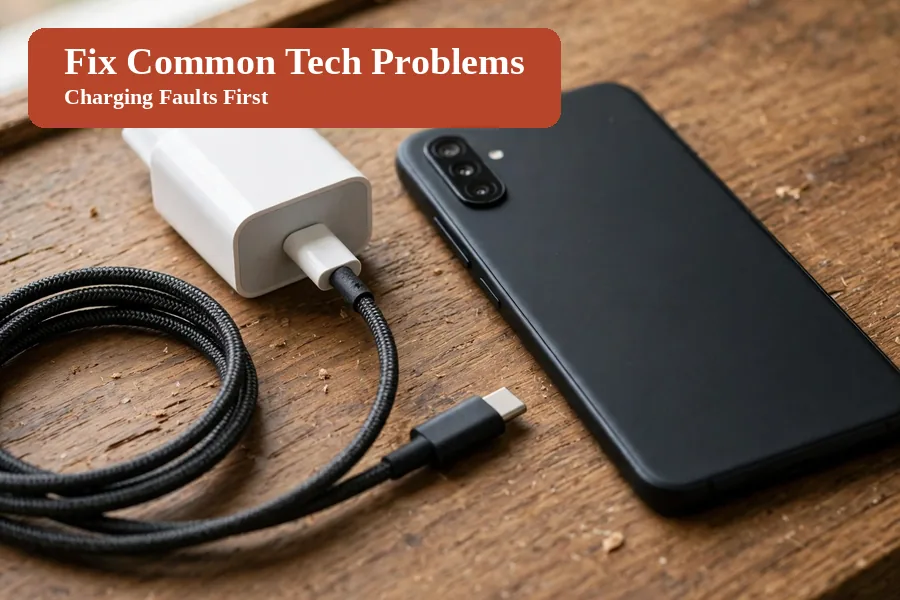
Charging faults often come from the cable, the plug or the socket. Try a different cable and a different socket first. Check the port for lint or dust, and clean it with care. If the device shows no sign of life, leave it on charge. Half an hour is a fair test.
A laptop that will not turn on needs the same calm order. Remove the charger, hold the power button for a short time, then plug in again. Try a known good charger if you have one. See our phone charging guide and laptop power guide for both faults in full.
Watch for warning signs while you test. A swollen battery needs expert help. So does a loose port or a hot charger. Do not keep forcing a damaged charger into a loose port. That risks more damage to the device and to you.
Storage full, files lost or photos stuck on a phone
A full device runs slow and stops saving new photos. Check which files take the most space first. Delete duplicate photos and old downloads, then empty the trash. Move the files you want to keep to a backup straight away.
Backups turn a lost phone into a small problem, not a disaster. Copy photos and key documents to a cloud service or an external drive. Check the backup by opening a few files from it. Our guide to backing up your computer shows a simple routine that works.
Moving photos off a phone frees space fast. Connect the phone with a cable, or use the cloud app you already trust. Delete from the phone only after you check the copies. Our guide to transferring photos from a phone to a computer covers both routes. If space stays tight, read our storage guide. It lists the biggest wins for a laptop.

Small habits that keep problems smaller
Most home tech faults grow slowly, then seem sudden. Updates, backups and a quick tidy stop that slow build up. Set a monthly reminder, and keep the routine short. Ten minutes a month beats a lost weekend of fixes.
| Habit | How often | Why it helps |
|---|---|---|
| Install updates | When offered | Fixes bugs and closes security gaps |
| Back up files | Each month | Turns a lost device into a small setback |
| Clear old files | Each month | Keeps storage free and speed up |
| Restart devices | Each week | Clears small glitches before they grow |
| Check cables | Each month | Catches fraying before a fault starts |
Use strong, different passwords for email and banking, and turn on two step checks where offered. Keep a note of your router password and your backup location. That note saves time when a fault strikes at a bad hour.

When to stop and get expert help
Stop at once for heat, swelling, smoke or a burning smell. A cracked screen with a faulty battery needs help too. Those signs need a repair shop, not another restart. Stop too if a drive clicks. Stop if a device stays dead after fair tests. Stop if data you cannot replace is at risk.
Check the warranty before you pay for a repair. A device still in warranty may get a free fix from the maker. Keep proof of purchase and a short note of the steps you tried. That note helps the repair shop find the fault fast.
Choose a repair shop with clear prices and good reviews. Ask what the fix covers, and whether your files stay safe. Back up first if the device still works at all. A cheap fix that loses your photos is no bargain.
Questions about fixing common tech problems
These answers cover how to fix common tech problems in daily life. Each one gives a short rule you can try today. Use the sections above for the full steps behind each answer.

What should I try first when my tech stops working?
Restart the device, check its power and cables, then test one change at a time. Note what changed just before the fault, such as an update or a move. That order clears most small faults and shows when help is needed.
Why does my wifi work in one room but not another?
Distance, thick walls and nearby gadgets weaken the signal as it travels. Move the router higher and more central, and test near it first. A wired test then shows whether the line or the wifi is at fault.
Why is my phone battery draining so fast?
Background apps, high brightness and weak signal drain power fast. Lower brightness, close apps you do not need and check for updates. If an old battery still fades fast, a battery swap may help.
How do I know if a problem is the device or the wifi?
Test a second device on the same wifi network. If both fail, the fault sits with wifi or the line. If only one fails, the fault sits with that device or its app.
When should I replace a device instead of fixing it?
Replace it when repair costs near a new device, or faults keep returning. Age, a dead battery and no updates all point that way. Back up your files first, so nothing you value is lost.
Try the calm order first, then fix one thing at a time
Start tonight with a restart, a cable check and a quick storage look. Learn how to fix common tech problems one fault at a time. Pick the one fault that bothers you most, and work its section in order. Small, steady steps fix more tech than rushed guesses ever will.
This guide shows how to fix common tech problems with patience and a clear order. Keep the monthly habits short. Back up what matters. Stop for help when safety is in doubt. Your devices will last longer, and your evenings will stay calmer.