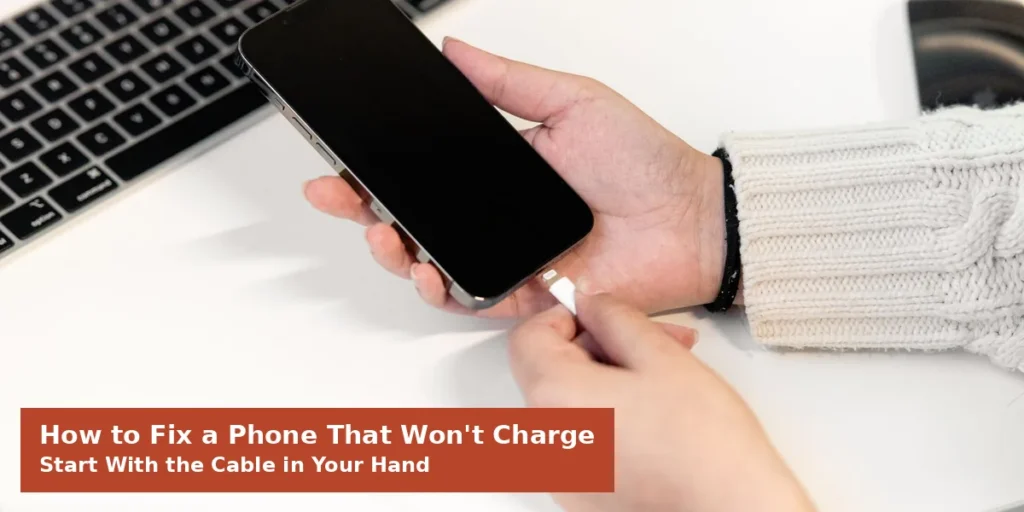
To fix a phone that won’t charge, work through the charging chain in order. Swap the cable and wall adaptor, then check the socket itself. Clean the charging port, restart the phone, and wait thirty minutes. Most phones charge again before you reach the repair stage.
Apple and Google publish the same order of checks for a reason. A phone not charging usually has a cheap accessory to blame. This guide shows how to fix a phone that won’t charge, in the makers’ order.
The Short Version
| Test | What it rules out |
|---|---|
| Different cable and adaptor | A worn lead or a dead wall plug |
| Wall socket, not a laptop port | Weak power from a low output source |
| Port cleaned and cable seated | Pocket fluff blocking the connection |
| Restart, then thirty minutes | A software glitch or a flat battery |
| Wireless charger test | A faulty port, if the pad works |
How to Fix a Phone That Won’t Charge: Test the Cable and Adaptor First
Cables fail more often than phones do. The wire breaks inside, near the ends, where it bends daily. From outside, the cable can look completely fine. Apple tells owners to check for breakage or bent prongs first, in Apple’s charging guide.
- Unplug everything and inspect the cable end to end.
- Bin any cable with fraying, kinks or exposed wire.
- Borrow a cable and adaptor that charged another phone.
- Charge a different phone with your cable and adaptor.
- Plug straight into a wall socket, not an extension lead.
- Prefer a wall socket over a laptop USB port.
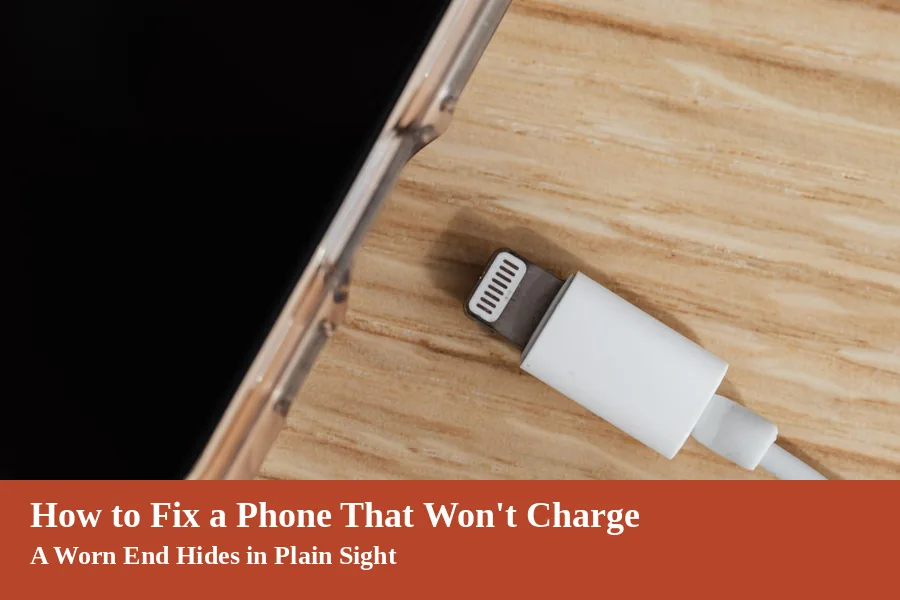
Watch for an accessory warning while you test. An iPhone may say this accessory is not supported. An Android phone may say check charging accessory instead.
Apple lists a dirty or damaged port among the causes. It also blames chargers never designed to charge devices. Google blames a damaged or unsupported accessory. Swap the accessory before you blame the phone.
Clear the Charging Port Without Damaging It
Pockets fill the charging port with fluff and dust. The plug then stops a fraction short of full contact. Charging starts and stops, or never starts at all. A torch shows the packed fibres clearly.
- Switch the phone off before you touch the port.
- Shine a torch inside and look for lint.
- Tap the phone gently, port down, against your hand.
- Loosen fibres with a wooden toothpick or soft brush.
- Never use a pin, needle or paper clip.
- Plug the cable in and feel for a firm click.
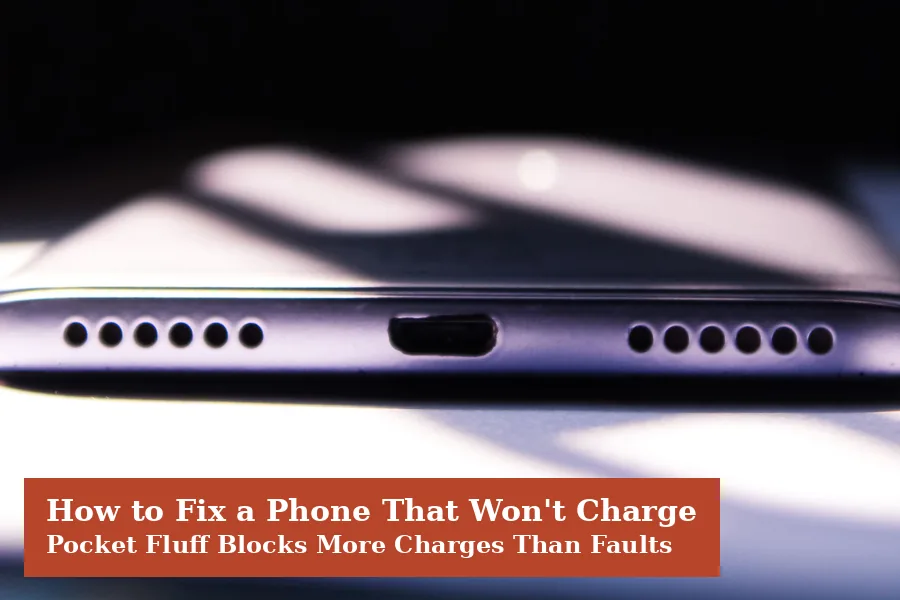
Metal tools bend the small contacts inside the port. They can also short the pins and end the phone. Apple says only to remove debris, then plug in firmly. A repair shop can clean a stubborn port safely.
Restart the Phone, Then Give It Half an Hour
Software runs the charging system, and software can freeze. A restart clears the glitch without touching your data. Google starts with holding the power button down. Five to seven seconds usually restarts an Android phone.
A fully flat battery can look completely dead. The screen may stay black for many minutes on charge. Google notes a drained Pixel can show nothing for 25 minutes. Apple sets the same patience test for iPhone.
- Plug into a wall socket with a tested cable.
- Leave the phone charging for thirty minutes.
- Force restart it if the screen stays black.
- Charge for another thirty minutes after the restart.
- Book a repair if nothing has changed by then.
| Phone | Force restart buttons |
|---|---|
| iPhone 8 or later | Volume up, volume down, then hold the side button |
| iPhone 7 | Hold the side and volume down buttons together |
| iPhone 6s or earlier | Hold the side and Home buttons together |
| Most Android phones | Hold power, or power and volume down, until it restarts |
Our guide to a laptop that won’t turn on follows the same rule. Rule out the power supply before pricing any repair. A patient half hour saves many needless repair bills. That patience sits at the heart of how to fix a phone that won’t charge.
Why Your Phone Stops Charging at 80 Per Cent
A phone that stops at 80 per cent may be healthy. Makers added limits that slow battery ageing over time. The phone waits there until you usually unplug it. Nothing needs fixing when the limit works as designed.
- iPhone: check Settings, Battery, then Charging for a limit
- Pixel: check Charging optimization for a Limit to 80% option
- Samsung Galaxy: Battery protection can stop charging at 80%
- Any phone: heat can pause charging above the same mark
Heat triggers the same pause without any setting. Apple says a warm battery can limit charging above 80 per cent. Move the phone and charger somewhere cooler, then wait. Charging resumes once the temperature drops.
Turn the limit off only when you need full charge. A long travel day is a fair reason. Daily full charges wear the battery out faster.
A Liquid Alert Means Unplug, Dry and Wait
Newer phones sense water inside the charging port. They block charging until the connector dries out. Charging a wet connector can corrode its pins permanently. Apple shows alerts such as Liquid Detected for this.
- Unplug the cable from the phone and the wall.
- Tap the phone gently, connector facing down.
- Leave it somewhere dry with air moving past.
- Wait at least thirty minutes before trying again.
- Allow up to a day if the alert returns.
- Never dry it with a hair dryer or radiator.
- Never blow compressed air into the connector.
- Never push cotton buds or tissue inside.
- Leave the bag of rice in the kitchen cupboard.
A wireless charger still works while the port dries. Wipe the back of the phone dry first. Apple keeps the emergency override for real emergencies only. Drying patiently protects the connector for years.
Use a Wireless Charger as a Fault Finder
A charging pad bypasses the port and cable completely. That makes it a simple test, not just a convenience. If the phone charges on the pad, power reaches the battery. The fault then sits in the port or accessories.
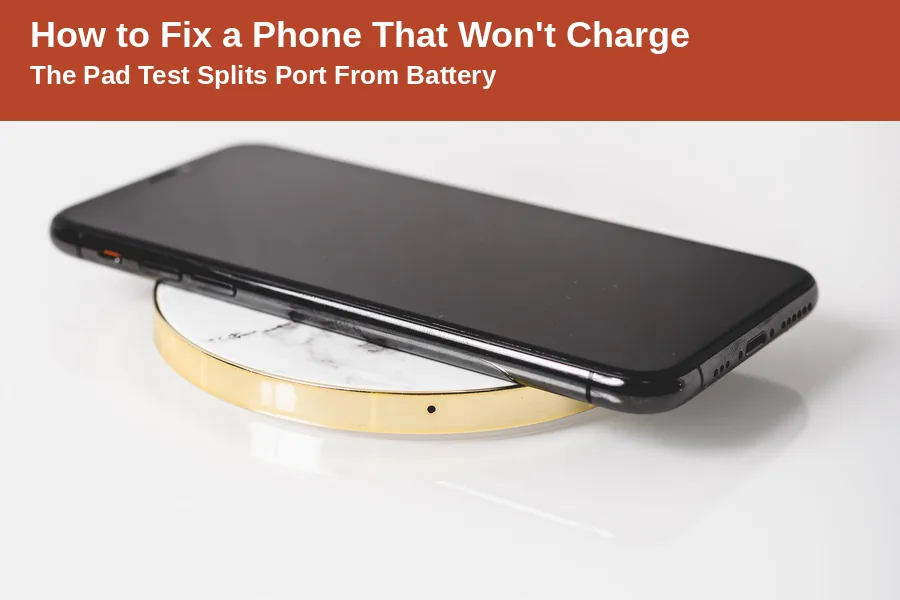
- Take the case off the phone first.
- Centre the phone on the pad’s coil.
- Feed the pad with its own wall adaptor.
- Watch for the charging symbol within seconds.
Thick cases and metal plates block wireless charging. Google tells owners to remove the case before testing. A pad starved by a weak adaptor also fails silently. Use the adaptor that came with the pad.
If neither cable nor pad wakes the phone, think battery. The battery or the board inside has likely failed. That is the moment how to fix a phone that won’t charge becomes a repair question. Do not keep buying cables at this point.
Check the Battery Health Before You Pay Anyone
Batteries wear out a little with every charge cycle. A tired battery charges slowly and empties fast. It can shut down while the screen shows charge left. Your phone can report its own battery condition.
- iPhone: Settings, Battery, then Battery Health shows capacity
- Pixel: Settings, Battery, then Battery health, on supported models
- Samsung Galaxy: run Diagnostics inside the Samsung Members app
Stop at once if the battery has swollen. A bulging screen or lifting back panel means danger. Do not charge that phone again, on any charger. Take it straight to a repairer for safe handling.
When the Port or Battery Needs a Repairer
Some faults survive every home test above. A cable that only works at one angle points to the port. Pins inside wear down until contact comes and goes. No restart or cleaning fixes worn metal.
Choose the maker’s own service route where you can. Apple ends its guide with a service visit for stubborn phones. Google sends owners to an authorised repair centre. Ask for the diagnosis before approving any part swap.
Back up the phone before it leaves your hands. Photos and messages matter more than the handset itself. A repair can involve wiping or replacing the device. The same habit drives our guide to backing up your computer.
Ten Quiet Minutes Now Beats a Dead Phone Later
Most charging faults announce themselves weeks early. A cable that needs wiggling is asking for replacement. A port cleaned monthly rarely packs solid with fluff. Small habits keep the panic morning away.
Keep one known good cable and adaptor at home. They turn guesswork into a thirty second test. Knowing how to fix a phone that won’t charge starts there. Test first, spend later, and repair last.
More fixes live in our Tech archive, and our tech founder pillar anchors the cluster. Bring the same order to every dead device you own. That order is the whole answer to how to fix a phone that won’t charge.
Frequently Asked Questions
Why is my phone plugged in but not charging?
Start with the cable, adaptor and socket, in that order. A worn cable or weak adaptor causes most silent failures. Then check the port for packed fluff or moisture. Restart the phone and give it thirty minutes before blaming the battery.
How do I clean a charging port safely?
Switch the phone off and shine a torch inside. Tap it gently, port facing down, against your hand. Loosen any fibres with a wooden toothpick or soft brush. Never use metal tools, because they bend the contacts inside.
Why does my phone stop charging at 80 per cent?
A battery protection setting is the usual reason. iPhone, Pixel and Samsung phones all offer limits near 80 per cent. The limit slows battery ageing during long overnight charges. Heat can trigger the same pause, so let the phone cool.
What does a liquid detected alert mean?
The phone has sensed moisture in the connector or cable. It blocks charging so the pins cannot corrode. Unplug everything, tap the phone gently with the port down, and wait. Try again after thirty minutes, or a full day if needed.
Why is my phone charging so slowly?
A weak adaptor or laptop USB port supplies too little power. Heavy use while charging can outpace a small charger. A worn cable and a hot phone slow things further. Use the wall adaptor made for your phone instead.
When should I pay for a charging repair?
Pay when tested cables, a clean port and wireless charging all fail. A cable that works only at one angle also points to the port. Ask for a diagnosis before any part is replaced. A swollen battery means stop and seek help immediately.