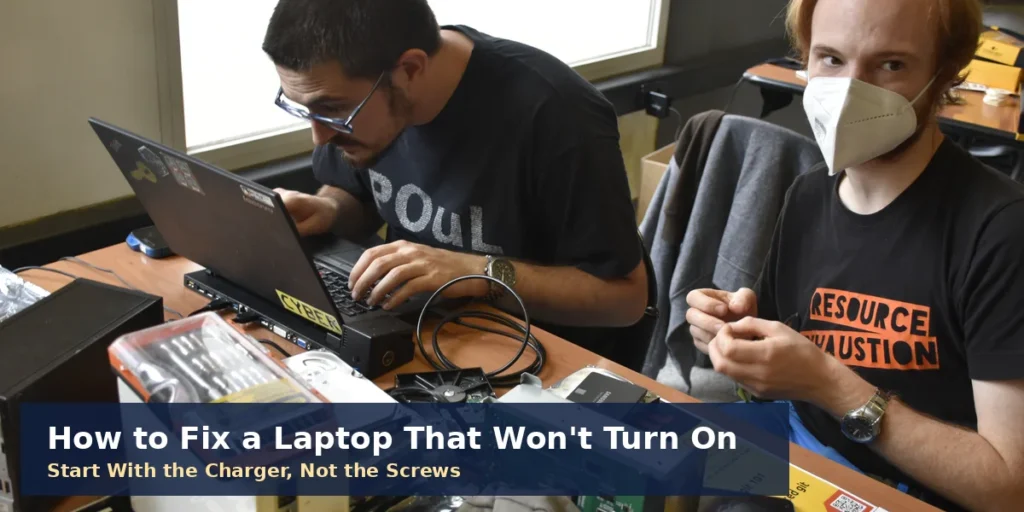
How to fix a laptop that won’t turn on starts with the power path. Test the charger and wall socket before anything else. Then unplug every accessory and drain the leftover power. Most dead laptops fail on one of these early checks.
This guide keeps the order strict, cheapest checks first. You need no tools for the first six checks. Nothing here involves opening the case until the last check. Tech careers start with this same habit, as our tech founder guide explains.
Key Takeaways
- Work in order: charger, drain, battery, screen, then software.
- A 15 to 30 second power hold clears many dead laptops.
- Blink and beep patterns are error codes from the maker.
- A swollen battery or liquid spill means stop at once.
- Your files usually survive a fault that kills power.
- How to fix a laptop that won’t turn on: power first, always.
How to Fix a Laptop That Won’t Turn On: The Checks in Order
The order matters because each check clears one suspect. Power comes first, then the battery, then the screen. Software checks wait until the machine shows some life.
- Prove the charger, cable and socket actually deliver power.
- Unplug every accessory, dock and memory card.
- Drain leftover power with a long power button hold.
- Test the battery apart from the laptop itself.
- Prove the screen works with an external monitor.
- Read any blink codes, beeps or heat clues.
- Use Safe Mode when Windows starts, then stops.
- Reseat the memory, only if the case opens easily.
Stop the moment one check brings the laptop back. Reconnect accessories one at a time after it starts. The item that kills it again is your culprit.
Read the Signs Before You Touch a Screw
Press the power button once and watch for ten seconds. Note any lights, fan noise, beeps or screen glow. What the laptop does now points at the faulty part.
| What you see | What it usually means | First check |
|---|---|---|
| Nothing at all, no lights or sound | No power is reaching the board | Charger and socket checks |
| Lights or fan noise, screen stays black | Machine runs, picture is missing | External monitor test |
| Starts, then switches itself off | Heat, battery or a safety shutdown | Cooling and battery tests |
| Logo appears, then it loops or freezes | Windows or the drive is struggling | Safe Mode and recovery |
A completely silent laptop is a power problem first. Fans with a black screen suggest a display fault instead. Treat each pattern as a clue, not a verdict.
Check the Charger, Cable and Socket First
A faulty charger is the commonest reason laptops seem dead. Push every plug fully home at both ends. Try a different wall socket that you know works. Test that socket with a phone charger first.
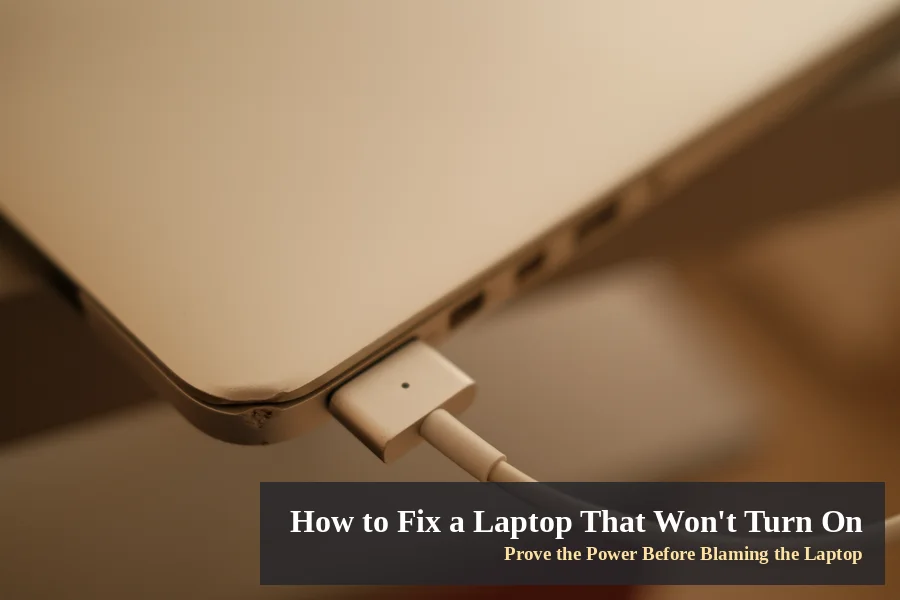
Look for a light on the charger brick or port. No light at all often means the charger failed. Check the cable for frays, cuts or bent pins. A damaged cable can stop power without warning.
USB-C laptops can be pickier about ports and wattage. Some models only charge through one marked port. A phone charger rarely supplies enough watts for laptops. Borrow a matching charger before you buy one.
Unplug Everything and Give It a Minute
Accessories can block a laptop from starting at all. Remove USB drives, docks, printers and HDMI cables. Take out memory cards and any discs too. Then try the power button on the bare machine.
A flat battery can also fake a total failure. Leave the laptop plugged in before judging it dead. Some batteries need charge before the machine responds. Patience here saves an unnecessary repair bill later.
Drain the Leftover Power With a Hard Reset
Knowing how to fix a laptop that won’t turn on means knowing this reset. A hard reset drains the leftover power confusing the board. HP sets out this same reset in its troubleshooting guide.
- Unplug the charger from the laptop completely.
- Remove the battery if your model lets you.
- Hold the power button down for 15 to 30 seconds.
- Reconnect the charger, leaving the battery out.
- Press the power button and watch for life.
Sealed laptops skip the battery step entirely. Just unplug, hold the button, then reconnect power. This one step revives a surprising number of laptops. If it starts, refit the battery afterwards.
Test the Battery Separately From the Laptop
The battery test separates a cheap fault from a dear one. Run the laptop on the charger with battery removed. If it starts happily, the battery is the problem. Refit the battery only after this test passes.
A battery near death gives warnings before failing. It may hold charge for minutes, not hours. It may work plugged in, then die unplugged. The charge light may blink a warning pattern.
Stop at once if the battery looks swollen. A bulging case or lifting trackpad means danger. Do not charge it, press it or pierce it. Take it to a repair shop for safe removal.
Decide Whether the Screen Is the Real Fault
Sometimes the laptop runs fine behind a black screen. Listen for the fan and watch the keyboard lights. Press Caps Lock and see if its light answers. A responding light means the machine is alive.
Raise the brightness keys a few taps first. Brightness can sit at zero without you noticing. On Windows, press Windows, Ctrl, Shift and B together. A short beep means Windows restarted the graphics driver.
Connect a television or monitor with an HDMI cable. A picture there clears the laptop’s power system completely. The fault then sits in the screen or its cable. Look for a faint image in a dark room.
Let Blink Codes, Beeps and Heat Speak
Blinking lights and beeps are the laptop talking. Makers print these patterns as hardware error codes. Count the blinks or beeps before they stop. Then search the maker’s support site for your model.
The same blink pattern means different faults across brands. Never trust a code table from another maker’s page. Your model’s manual is the only safe translator.
Heat can also lock a laptop out completely. A hot machine may refuse starting until it cools. Leave it somewhere cool for 15 to 20 minutes. Keep every vent clear of dust and bedding.
When It Starts, Then Stops, Loops or Freezes
A laptop that starts, then stalls, has working power. The fault now sits in Windows or its drivers. Force shutdown twice more during startup for Automatic Repair.
- Choose Advanced options on the blue recovery screen.
- Open Troubleshoot, then Advanced options, then Startup Settings.
- Restart, then press F4 for Safe Mode.
- Remove the latest update or display driver inside.
A failure straight after an update points at software. Roll back that update before blaming any hardware. Safe Mode loads so little that faults stand out.
MacBooks follow a shorter version of the same idea. Hold the power button for about ten seconds. Release it, then press the button once normally. Unplug accessories first, exactly as with Windows laptops.
One Careful Check Inside: Reseat the Memory
Loose or failing memory can leave a laptop mute. This check suits older laptops with opening base panels. Skip it entirely if your case is sealed shut. Skip it too while a warranty still runs.
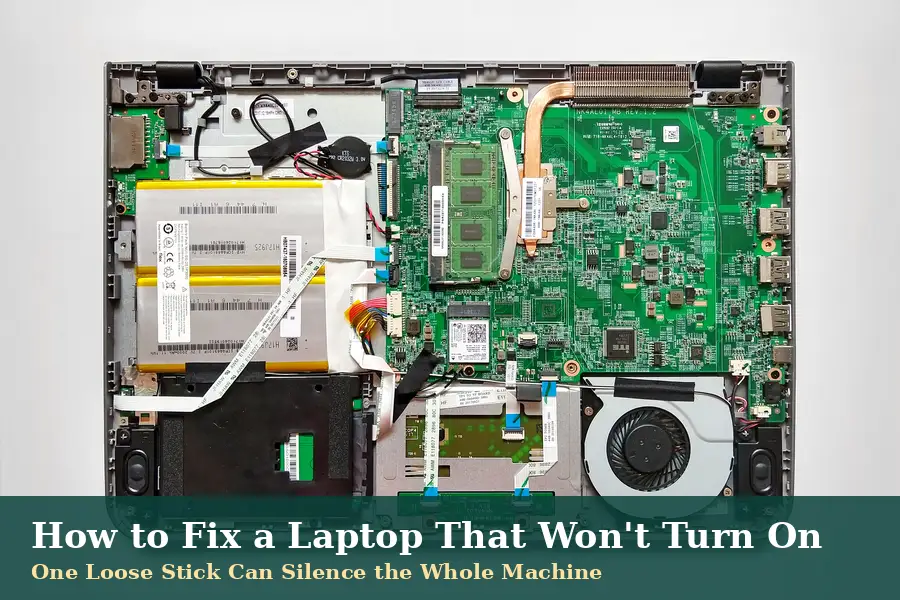
Remove one memory stick and try starting again. Then swap sticks and repeat the same test. Starting on one stick condemns the stick removed. Touch metal first, so static cannot hurt parts.
Work on a table with the charger unplugged. Keep every screw beside its own hole position. Confidence matters more here than any special tool.
Know When to Stop and Book a Repair
By now the checks have sorted most faults. The pattern of lights tells you what failed. Match your pattern against the three suspects below.
- No light when plugged in points at the charger.
- Runs plugged in, dies unplugged, points at battery.
- Lights and fans, nothing anywhere, points inside.
A power fault rarely touches your stored files. The drive usually survives even when boards fail. A repair shop can copy files from it. Ask about your data before agreeing any repair.
Once it lives again, keep it that way. If it then runs slowly, our slow laptop guide takes over. More fixes live in our Tech archive.
A Silent Laptop Is Rarely a Dead One
You now know how to fix a laptop that won’t turn on. Most silent laptops fail on power, not on age. Chargers, batteries and stuck power states lead the list. You tested all three today with no tools.
Work the order once more before spending anything. Tell us in the comments which check revived yours. Your answer may save another reader real money.
Frequently Asked Questions
Why won’t my laptop turn on even when plugged in?
Plugged in does not always mean powered up. The charger, its cable or the socket may have failed. A stuck power state can also block startup completely. Run the charger test, then the hard reset, before assuming worse.
How long should I hold the power button to reset it?
Hold it for 15 to 30 seconds, with the charger unplugged. Remove a removable battery first, where your model allows it. Then reconnect only the charger and try starting. That is the heart of how to fix a laptop that won’t turn on.
Can a dead battery stop a laptop starting on mains power?
Yes, though HP calls the case rare. A badly failed battery can block power reaching the board. Remove the battery and start on the charger alone. Starting then proves the battery was the whole fault.
My laptop lights up but the screen stays black. What should I check?
Your laptop is probably running behind a dark display. Press Caps Lock and watch whether its light responds. Raise the brightness, then restart the graphics driver with Windows, Ctrl, Shift and B. An external monitor settles the question quickly.
Will I lose my files if my laptop won’t turn on?
Almost certainly not, because power faults spare the drive. Your documents sit on storage, separate from the power circuits. A repair shop can usually copy them onto another machine. Mention your files before any repair work begins.
How can I tell if the charger or the battery has failed?
Watch what the lights do on charger power alone. No light at all points towards a failed charger. A laptop that dies the moment you unplug points at the battery. Borrowing a matching charger settles it fastest.