Learning how to speed up a slow laptop starts with free fixes. Restart properly, trim startup apps and free up disk space first. Install updates and run a malware scan next. Only then judge whether new parts are worth buying.
This guide follows the order Microsoft recommends for Windows machines. Most steps also work on a Mac with different menu names. Work through them in order and test speed after each one. Our tech founder guide assumes an ordinary laptop like this.
Key Takeaways
- You can learn how to speed up a slow laptop with free fixes first.
- Keep at least a tenth of your drive free at all times.
- Updates and one malware scan belong in every fix session.
- An SSD is the single upgrade that changes an old laptop most.
- Heat, dust and a tired battery slow machines down too.
Match the Symptom to the Likely Cause
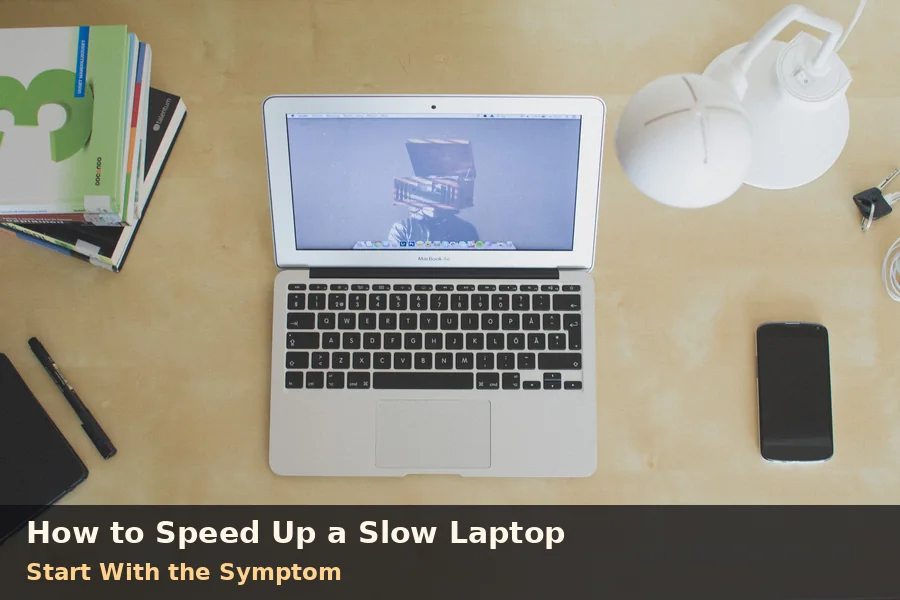
People ask why is my laptop so slow as if one answer exists. A laptop running slow at startup points to different faults than one freezing mid-task. Match your symptom below before changing any settings. The right first fix saves you an hour of guessing.
| What you notice | Likely cause | First fix to try |
|---|---|---|
| Takes ages to start up | Too many startup apps | Trim the startup list |
| Fine at first, slower by evening | Apps and tabs piling up | Restart and close unused apps |
| Everything pauses and stutters | Nearly full drive or little memory | Free up space, then check memory |
| Sudden slowdown with pop-ups | Malware or unwanted software | Run a full malware scan |
| Hot base and a loud fan | Dust, blocked vents, tired battery | Clean vents and check the battery |
Two clues narrow things down even faster. Note whether the slowdown arrived suddenly or crept in over months. Sudden changes suggest software, while gradual decline suggests build-up or age. Keep that answer in mind through every section below.
How to Speed Up a Slow Laptop: Restart It Properly First
Closing the lid only sleeps a laptop, it never resets it. A proper restart clears memory and stops stuck background processes. Save your work, choose Restart, and wait for a full boot. Many machines feel quicker from this step alone.
- Press Ctrl, Shift and Esc together to open Task Manager.
- Sort the Processes list by CPU, memory or disk use.
- Close apps you recognise but are not using.
- On a Mac, open Activity Monitor from Utilities instead.
Browser tabs deserve the same honesty as apps. Twenty open tabs can eat more memory than your documents. Close finished tabs and bookmark anything worth keeping. Your next session starts lighter straight away.
Stop Apps Opening Themselves at Startup
Every app that launches itself steals seconds from your boot time. Chat apps, game launchers and updaters are the usual squatters. None of them needs to open before you do. Removing them from startup never deletes the app itself.
- Open Task Manager and choose the Startup apps tab.
- Check the Startup impact column beside each entry.
- Disable anything marked high that you open manually anyway.
- Leave security software and driver tools switched on.
Restart once more after trimming the list. Time the boot with your phone if you want proof. Most people feel the difference before the desktop settles. Mac users trim the same list under Login Items in Settings.
Free Up Space on a Nearly Full Drive
Your system needs spare room to shuffle files and updates. A nearly full drive makes every save and search slower. Guides suggest keeping at least a tenth of the drive free. Clearing space is free, quick and oddly satisfying.
- Turn on Storage Sense in Windows storage settings.
- Empty the temporary files list and the recycle bin.
- Uninstall games and apps you have not opened for months.
- Move old photos and videos to an external drive.
Check the Downloads folder before you delete anything inside it. Installers and forgotten documents hide there in surprising sizes. On a Mac, the Storage page lists what eats space. Work through its recommendations in the same order.
Install Updates, Then Scan for Malware
Outdated software causes more slowdowns than most owners expect. Windows updates carry performance fixes alongside security ones. Optional driver updates hide under Advanced options in Windows Update. Microsoft’s own performance guide lists updates first for exactly this reason.
Run a malware scan once updates finish installing. The scanner built into Windows handles a first check well. Choose a full scan if the slowdown arrived suddenly. One security app is enough, since two together fight and slow everything.
Automatic updates stop the same slowdown returning next month. A weekly restart clears whatever the week piled up. Neither habit costs money or real effort. Both protect every other fix in this guide.
Ease the Graphics and Power Settings
Animations and shadows look pleasant but cost real resources. Older laptops feel that cost in every window movement. Switch visual effects to best performance in the performance settings. The desktop looks plainer and answers noticeably faster.
Power mode trades battery life against outright speed. Best performance suits plugged-in work at a desk. Balanced suits trains, cafés and battery anxiety. Microsoft warns the fastest mode also runs laptops warmer.
Cool It Down: Dust, Vents and Battery Wear
An overheating laptop slows itself down to stay safe. Processors cut speed when heat builds beyond their limits. Blocked vents and dusty fans invite exactly that problem. Soft beds and sofas are the worst workplaces for airflow.
- Work on a hard, flat surface whenever you can.
- Keep side and rear vents clear of walls and clutter.
- Blow dust from vents with short bursts of compressed air.
- Listen for a fan that roars during simple tasks.
Battery wear adds a quieter drag on older machines. Some laptops limit speed when a battery fades badly. A repair shop can test battery health in minutes. Replacing a battery often beats replacing the laptop.
The Only Two Upgrades Worth Your Money
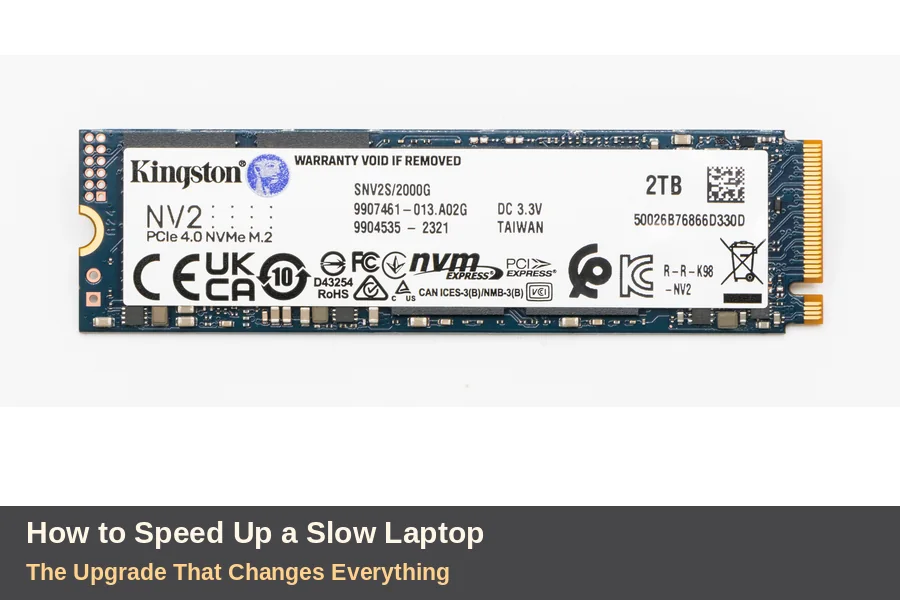
An SSD upgrade beats every other paid fix by distance. Swapping a mechanical hard drive for a solid state drive transforms boot times. Programs open in seconds instead of minutes. This is where guides on how to speed up a slow laptop agree most.
Add more RAM when memory stays near full during normal work. Task Manager shows memory use under its Performance tab. Around eighty percent in use signals upgrade time. Eight gigabytes handles basics, while sixteen feels comfortable for multitasking.
Upgrades are the paid half of how to speed up a slow laptop. Check your exact model before ordering any part online. Some slim laptops have memory soldered permanently to the board. The maker’s spec page lists slots and maximum sizes.
When a Replacement Beats Another Repair
Some machines have simply reached their honest limit. A laptop that cannot run current software safely needs replacing. No cleanup restores support for an abandoned operating system. Spend the upgrade money towards its successor instead.
A healthy older laptop still earns its keep, though. It handles browsing, documents and beginner projects perfectly well. Our guide to how to learn coding for free runs happily on modest hardware. Judge the machine by your tasks, not its birthday.
UK repair cafés and high street repair shops offer a middle path. A volunteer or technician can clean, test and advise cheaply. That check tells you whether parts would help. Decide with evidence instead of frustration.
Keep It Fast With Ten Minutes a Month
You now know how to speed up a slow laptop without guesswork. Work the free fixes in order and test after each. Keep the startup list short and the drive airy. The machine rewards small regular attention.
Small routines protect the work you just did. Four habits cover almost everything that creeps back. Put them in your calendar today and forget them.
- Restart the laptop fully once a week.
- Clear temporary files and Downloads monthly.
- Review startup apps after installing anything new.
- Run one full malware scan every month.
Browse our full Tech archive for your next upgrade or skill. Tell us in the comments which fix rescued your machine. The slowest laptop in your house deserves one honest afternoon.
Slow Laptop Questions, Answered
Why is my laptop so slow all of a sudden?
Sudden slowdowns usually trace back to software changes. A fresh update, new app or malware infection can all arrive overnight. Restart first, then check Task Manager for unfamiliar heavy processes. Run a full malware scan before changing any other settings.
Should I add RAM or an SSD first?
Choose the SSD first if your laptop still uses a mechanical hard drive. It improves starting, loading and everyday response at once. Add memory instead when Task Manager shows memory near full. Many older laptops benefit from both, fitted together.
How much free space should I keep on my drive?
Aim for ten to fifteen percent of the drive sitting empty. Fuller drives slow updates, temporary files and everyday saving. Your system uses that spare room every hour it runs. Every fix in this guide works better with that room.
Will resetting my laptop make it faster?
A reset often restores much of a laptop’s original speed. It removes years of leftover software in one pass. Back up every important file before you start. Choose the option that keeps your files, then reinstall only needed apps.
Is it worth fixing a laptop that is five years old?
Often, yes, if the screen, keyboard and battery remain sound. An SSD and a clean system can add years of useful life. Skip repairs when core parts are soldered or failing. A repair shop health check settles the question cheaply.