
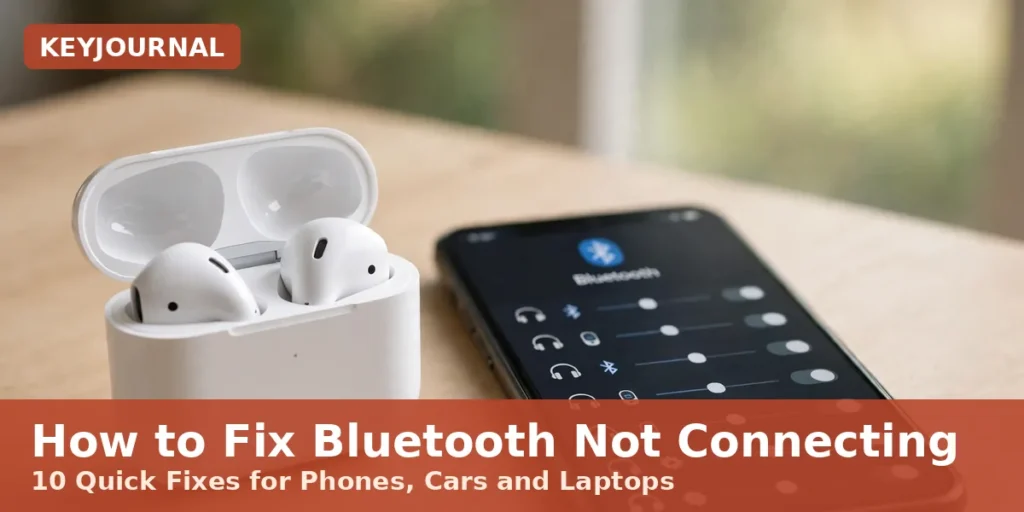
Bluetooth not connecting usually means the saved pairing has gone stale. Forget the device on your phone, put the accessory back into pairing mode, then pair it again as new. That one move fixes most cases in under two minutes.
This guide shows you how to fix Bluetooth not connecting on phones, laptops and cars. Work down the list until the device pairs again. Ten fixes, in the order that works.
At a Glance
| Fix | When it helps |
|---|---|
| Toggle Bluetooth off and on | No device shows up |
| Forget the device and pair again | One device refuses |
| Clear the cache on Android | Pairing broke after an update |
| Reset network settings on iPhone | Nothing connects at all |
How to fix Bluetooth not connecting in 60 seconds
Start with the quick checks. Most failed pairings end here. Half the time the answer is something small: a flat battery, Airplane mode left on, or headphones still joined to the laptop in the next room.
- Switch Bluetooth off, wait five seconds, then switch it back on.
- Check that Airplane mode is off on your phone.
- Charge the accessory and move it within one metre.
- Switch Bluetooth off on other phones and laptops nearby.
- Restart your phone, then switch the accessory off and on.
If nothing pairs, move on to pairing mode below. Our guide to how to fix common tech problems covers the rest.
Why your Bluetooth pairing fails
Pairing and connecting are two different jobs. Pairing happens once, when two devices agree to trust each other. Connecting happens each time after that. If the saved pairing code falls out of step, the link fails, and that is why forgetting and re-pairing works so often.
A full saved list can block a new pairing too, as some accessories only remember a handful of devices.
Put the device into pairing mode first
Switching an accessory on is not the same as pairing it. Most headphones rejoin the last device they knew, and they only appear in a new list while in pairing mode. Charge it first, as a flat battery stops pairing cold.
| Device | How to start pairing | What you will see |
|---|---|---|
| Wireless earbuds | Both buds in the case, lid open, hold the button | The case light flashes |
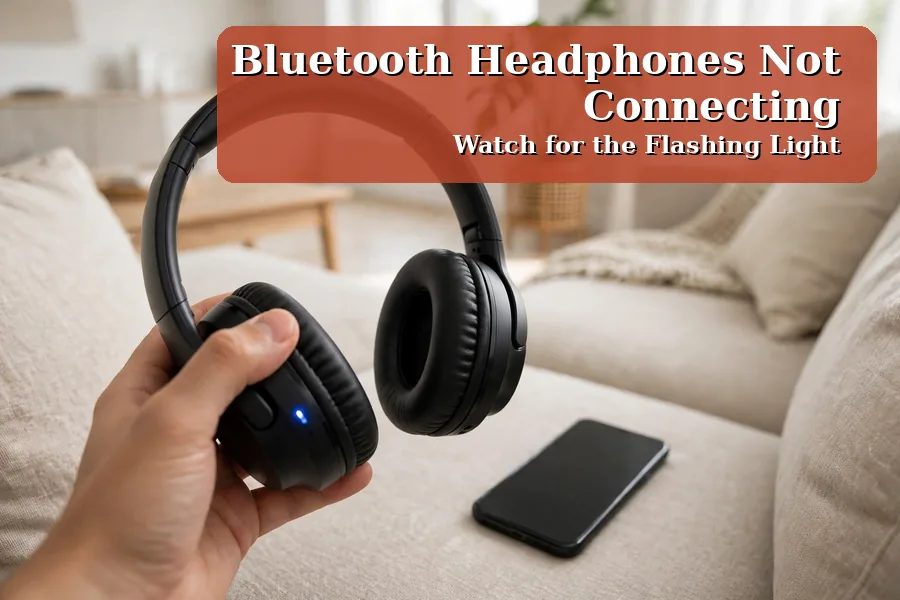
| Over-ear headphones | Headphones off, hold power until the light flashes | A beep, or a voice says pairing |
| Bluetooth speaker | Hold the Bluetooth button until it beeps | The light blinks fast |
Pairing mode does not last long. Many devices give up after one or two minutes, so open the Bluetooth screen first, then start pairing mode. Most people who search for how to fix Bluetooth not connecting skip this step, and that is why the device never shows up.
Forget the device and pair it again
This is the fix that works most often. Old pairing data can clash, so wiping it gives you a clean start, and it takes about a minute on any phone. Most guides on how to fix Bluetooth not connecting put this step first.
- On iPhone, open Settings, then Bluetooth.
- Tap the small i next to the device name.
- Tap Forget This Device and confirm.
- Put the accessory in pairing mode and tap its name.
- On Android, open Settings, then Connected devices.
- Tap the gear next to the device name.
- Tap Forget, then confirm with Forget device.
- Put the accessory in pairing mode and tap its name.
Forget the device on its other homes too. Headphones often stay paired to a laptop nearby and will rejoin it first.
Bluetooth not connecting on Android or iPhone
Phones add their own twists. Android hides a Bluetooth cache that turns stale after an update. Apple adds an app permission that can block a companion app. If you came here asking how to fix Bluetooth not connecting, the answer depends on which one you hold.
On Android: clear the cache and lift battery limits
Clearing the cache is safe, and it keeps your pairings. It only drops short-lived data that the Bluetooth service holds.
- Open Settings, then Apps, then See all apps.
- Tap the three dots and choose Show system apps.
- Open Bluetooth, tap Storage, then Clear cache.
- Restart the phone and try to pair again.
- Set the companion app to Unrestricted battery use.
Menu names vary a little by phone maker. Our guide on how to clear cache on your phone covers the same steps.
On iPhone: check app permission and reset network settings
Open Settings, then Privacy and Security, then Bluetooth, and make sure the switch for your accessory app is on. If it is off, the app cannot see the device at all. Update iOS too, in Settings, then General, then Software Update.
If no accessory connects at all, reset network settings: Settings, then General, then Transfer or Reset iPhone, then Reset, then Reset Network Settings. Pair everything again afterwards. Apple lists the same clean start on its support page.
Bluetooth not connecting on Windows 11
On a laptop, how to fix Bluetooth not connecting starts with removing the device in Settings. Windows 10 reached its end of support on 14 October 2025, so these steps use Windows 11. Same shape as on a phone: remove, then add again.
- Press Windows and A, then check Bluetooth is on.
- Open Settings, then Bluetooth and devices, then Devices.
- Click the three dots by the device, then Remove device.
- Put the accessory in pairing mode.
- Click Add device, choose Bluetooth, then pick it.
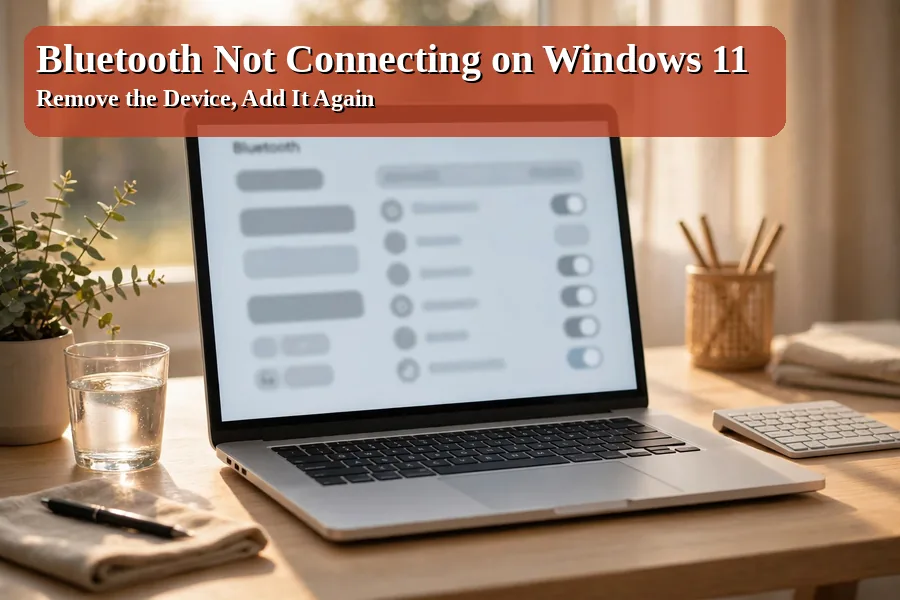
If Windows cannot see any device, the driver is the likely fault. Right-click Start, open Device Manager, then Bluetooth, and right-click your adapter to choose Update driver. If that finds nothing, fetch the latest driver from the maker's site.
Windows also needs its Bluetooth Support Service running. Press Windows and R, type services.msc, then press Enter. Find the service, set it to Automatic, and click Start if it sits idle.
Our slow laptop guide can help if yours feels sluggish, and our guide to how to fix a frozen laptop screen walks through a frozen screen.
Bluetooth not connecting in the car
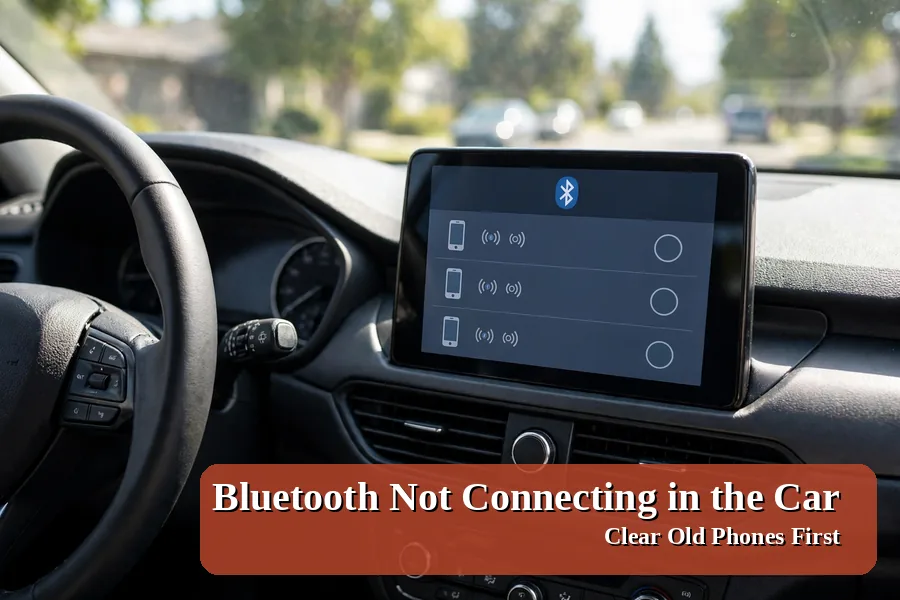
Drivers ask how to fix Bluetooth not connecting in the car more than any other question. The head unit can only recall a small set of phones, so if your family has changed phones a few times, the list may simply be full. Many cars also refuse to add a device while you drive, so park first.
- Park the car and switch the ignition on.
- On the car screen, open Bluetooth and delete old phones.
- On the car, choose Add new device.
- Tap the car name on your phone and match the code.
- Switch on Phone calls and Media audio for the car.
Older cars may ask for a PIN such as 0000 or 1234, so check the manual if the code is rejected. If you use wireless CarPlay or Android Auto, forget the car in those settings too, then pair it again. Still stuck? Switch the car off, wait a minute, then start it again.
Connected, but the sound stutters or keeps dropping
A link that holds but stutters is a different fault. Distance or your body is usually the cause, and a phone in a back pocket can break up earbuds. The link works, so this is not the usual how to fix Bluetooth not connecting story.
- Use 5 GHz wifi if your router offers it.
- Keep the phone on the same side as your earbuds.
- Move away from USB 3 hubs and microwave ovens.
- Switch off battery saver.
- On Android, try a different audio codec in Developer options.
- Switch Bluetooth off on the device you are not using.
The 5 GHz tip helps most when the house wifi is busy. Our wifi speed guide shows how to split the bands.
When the accessory or the hardware is at fault
When your phone and laptop both fail with one accessory, stop blaming the phone. The accessory itself may hold stale data or old firmware. Firmware is the built-in software that runs inside the device. A factory reset wipes its saved list and puts it back to a clean state.
The reset gesture differs by model, so check the manual first. A common move is holding power and volume together for 10 to 15 seconds. After the reset, forget the device on your phone, then pair it again. If you are still reading about how to fix Bluetooth not connecting, the accessory itself is the prime suspect.
Test the accessory on a second phone or laptop. If it fails everywhere after a reset and a full charge, the hardware is likely faulty. Check the warranty before you buy a replacement.
Questions readers ask about Bluetooth not connecting
Why does my Bluetooth keep disconnecting?
Battery saving is the usual cause, as it pauses the companion app. Too many linked devices and radio noise can also break the link. Set the app to Unrestricted and move the phone closer.
Why won't my Bluetooth headphones show up in the list?
The headphones are often not in pairing mode, or still linked to another phone nearby. A flat battery can hide them too. Put them in pairing mode, move them close, and scan again.
Why is my Bluetooth not connecting to my car?
The car list is often full, or the pairing went stale after a phone change. Delete old phones from the car, forget the car on your phone, then pair again. Check the code matches first.
Does resetting network settings delete my photos?
No, your photos, apps and accounts stay untouched. The reset only wipes saved wifi networks and passwords, VPN settings and Bluetooth pairings. Note your wifi password down first, then pair each device again afterwards.
How do I know if my Bluetooth device is broken?
Try it on a second phone or laptop. If it fails everywhere, the accessory is likely faulty, so try a factory reset and a full charge. If it works elsewhere, the fault sits on the first device.
Try the re-pair first, then work down the list
You now know how to fix Bluetooth not connecting, on phones, laptops and cars. The re-pair fixes most cases, and the quick checks catch the rest. Work down the list and test after each step.
If this guide helped, save it for the next fault.