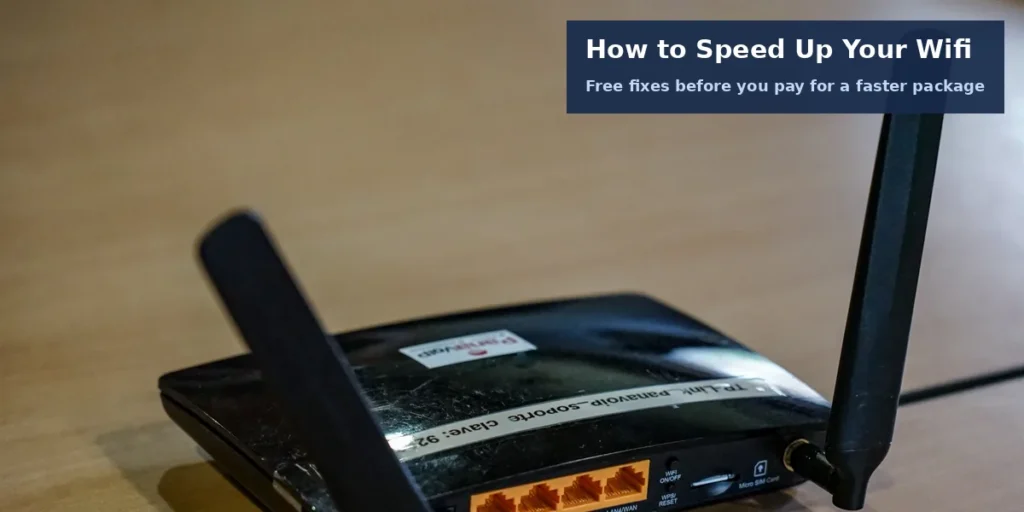
Learning how to speed up your wifi starts where it costs nothing. Move the router into the open, restart it, and split the two bands. Wire the devices that never move, and change the channel if neighbours crowd yours. Most slow home wifi is a placement and settings problem, not a broken line.
This guide works through the fixes in order. Each step takes minutes and needs no new kit. Later sections cover extenders, mesh kits and the broadband line itself. A slow laptop needs different fixes entirely. Our guide to how to fix a slow laptop covers the device side.
Start With a Speed Test, Not a Guess
A speed test tells you where the fault sits. Run one beside the router, then one where you usually sit. If the wired result is slow too, the line needs attention. If only the far room is slow, the signal is the problem.
Ofcom asks households to test over several days and times. One quick wifi speed test can mislead you badly. Follow this order for a fair picture:
- Plug a laptop into the router with an ethernet cable.
- Run a speed test and note the download figure.
- Unplug, stand beside the router, and test again on wifi.
- Repeat the test in the room that feels slowest.
- Test once more between 8pm and 10pm, the busiest hours.
Adverts quote speeds that at least half of customers reach at peak times. That is why your evening result matters most. Compare your wired figure with the minimum in your contract. A gap there points at the line, not the wifi.
Put the Router Where the Signal Can Travel
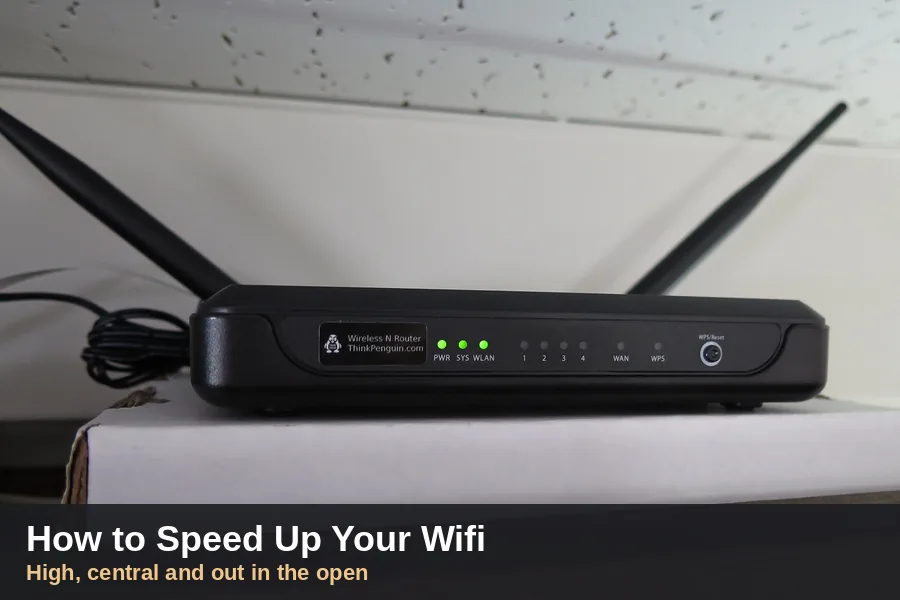
Wifi spreads outwards and downwards from the router. It weakens through walls, floors and metal. A central, raised, open spot beats a corner cupboard every time. Moving the router is the single most effective free fix.
Work through these router placement rules one by one:
- Choose the room where the household spends most time online.
- Raise it onto a shelf or table, never the floor.
- Keep it out of cupboards and away from thick walls.
- Move it away from metal objects, mirrors and fish tanks.
- Keep it clear of halogen lamps, dimmer switches and stereos.
- Note that microwaves can cut your wifi signal while they run.
Ofcom gives the same advice on its Stay Connected page. Its guide asks households to keep routers clear of everyday electrical items. It also says a router belongs on a table or shelf. The floor is the worst place for it.
Restart It Properly and Check the Firmware
A proper restart clears faults that build up over weeks. Switch the router off at the wall. Wait thirty seconds, then switch it back on. Give it five minutes before you test anything.
- Switch the router off at the wall socket.
- Wait a full thirty seconds before switching on.
- Let the lights settle for about five minutes.
- Run your speed test again and compare figures.
One UK guide, FastSwitch, advises a restart every week. It heard the same tip from provider support teams. A restart also lets the router pick a clearer channel. It costs nothing and takes ten minutes at most.
Firmware is the software that runs the router itself. Providers push updates that fix bugs and close security holes. Many routers update alone, usually overnight. Ofcom advises leaving the router switched on so updates land.
Split the Bands and Put Each Device on the Right One
Most routers broadcast two bands, 2.4 GHz and 5 GHz. The 2.4 GHz band travels further through walls. The 5 GHz band is faster at short range. The 2.4 GHz vs 5 GHz split lets you choose per device.
| Band | Best for | Watch out for |
|---|---|---|
| 2.4 GHz | Rooms far from the router, smart plugs and bulbs | Slower top speed, and crowded by neighbours |
| 5 GHz | Streaming and calls in the same room | Signal fades fast through walls |
Many routers merge both bands under one network name. The router then steers each device onto a band itself. Steering does not always pick the band you want. Separate names, such as Home and Home-5G, restore your choice. This setting sits at the heart of how to speed up your wifi.
Change the Channel When the Street Is Crowded
Neighbouring networks share the same airwaves as yours. On 2.4 GHz, only channels 1, 6 and 11 avoid overlap. A free analyser app shows which channels nearby homes use. Pick the quietest of those three for your router.
Set the 2.4 GHz channel width to 20 MHz as well. A wider setting promises speed but grabs more crowded airspace. On 5 GHz, leave the wifi channel and width on automatic. The band has more room, so clashes are rarer there.
Some 5 GHz channels pause when they detect radar signals. That safety rule is called Dynamic Frequency Selection. A brief pause on those channels is normal behaviour. It is not a fault with your router.
Wire the Devices That Never Move
A cable always beats wifi for speed and stability. Every wired device also frees airtime for the rest. Start with the television, the games console and the work computer. Those three usually cause the heaviest traffic.
- Run one cable from the router to the television.
- Use a small network switch when ports run out.
- Plug in the computer you use for video calls.
- Keep one spare cable for testing and guests.
Ethernet cables cost from around £3, says Ofcom. A short cable suits a television near the router. Longer flat cables run neatly along skirting boards. No wifi setting can match a wired connection.
When One Router Cannot Cover the Whole House
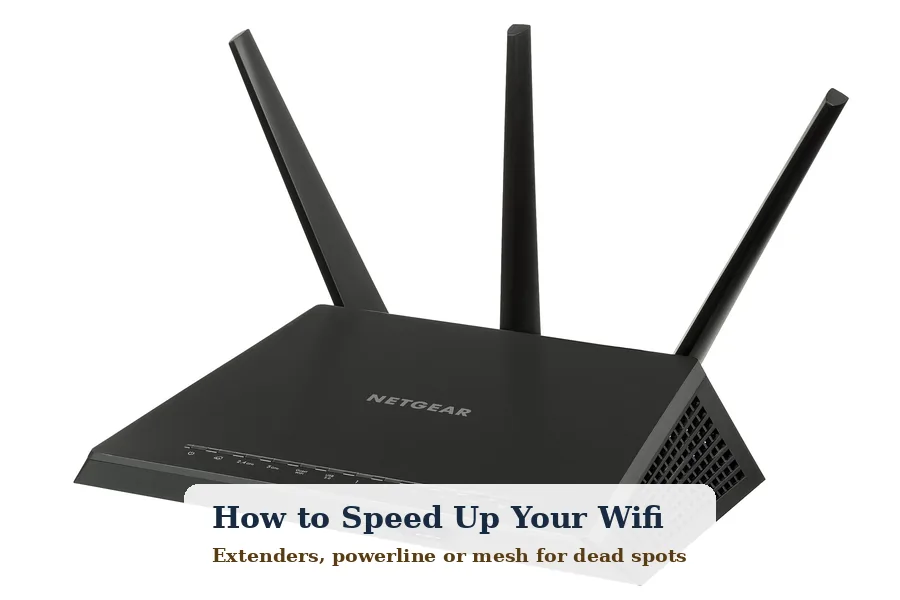
Big homes and thick walls can defeat any single router. Three fixes exist: an extender, powerline adapters, or a mesh wifi kit. Each suits a different house and budget. The table below compares them honestly.
| Option | How it works | Main drawback |
|---|---|---|
| Wifi extender | Repeats the signal into weak rooms | Can halve speed on the link it repeats |
| Powerline | Sends data through your mains wiring | Speed depends on the age of your wiring |
| Mesh kit | Several units share one network name | Costs the most of the three options |
Place an extender halfway between router and dead spot. It needs a decent signal to repeat, not a faint one. Mesh units follow the same halfway rule between each other. Test each room again after fitting anything. Coverage kit is the last resort in how to speed up your wifi, not the first.
When the Line Itself Is the Problem
Sometimes slow wifi comes from the line, not the signal. Long extension leads and faulty filters can cut line speed. The master socket gives the cleanest connection in the house. Test there before you blame the router.
- Plug the router into the main telephone socket.
- Avoid extension leads between socket and router.
- Fit a microfilter in every telephone socket in use.
- Keep the router switched on, day and night.
If wired tests stay below the promised minimum, call the provider. Under Ofcom’s code, they get one month to fix the line. After that month, you may leave without a penalty. A faster package only helps if the line can carry it.
Key Takeaways
- Test wired and on wifi before you change anything.
- Move the router high, central and out in the open.
- Split the bands and pick the right one per device.
- Use channels 1, 6 or 11 on the 2.4 GHz band.
- Wire the television, console and work computer.
- Add an extender, powerline or mesh only for real dead spots.
More home tech guides live in our Tech section. They range from laptop fixes to career routes like how to become a tech founder. Work through this list first, and only spend money when a test proves you need to. That order is how to speed up your wifi without wasting a pound.
Your Questions Answered
Why does my wifi slow down in the evening?
More homes stream, game and download after work. Your neighbours’ networks crowd the same channels as yours. Providers also carry their heaviest traffic between 8pm and 10pm. A wired test then shows where the slowdown sits.
Should I switch my router off at night?
Leave it on, because Ofcom advises keeping the router switched on. Updates and line checks often run overnight. Repeated switching can also make some lines look faulty. Restart it now and then instead, and let it settle afterwards.
Will a new router make my wifi faster?
Only if the old one limits you. A very old router may lack the 5 GHz band entirely. A new router cannot beat the speed of your line, though. Fix placement, bands and channels first, because those steps cost nothing at all.
What is the worst place to put a router?
The floor, inside a cupboard, is the worst spot. Signal spreads downwards and gets trapped by doors and walls. Behind a television or beside a fish tank is nearly as bad. A shelf in a central room gives the signal its best start.
Should I use 2.4 GHz or 5 GHz?
Use 5 GHz in the same room as the router. It carries faster speeds over short distances. Choose 2.4 GHz for rooms further away or through several walls. Many smart plugs and bulbs only work on 2.4 GHz, so keep that band switched on.
How do I know if my provider is at fault?
Run a wired speed test at the master socket. Compare the result with the minimum speed in your contract. If it stays below that figure, report it. Under Ofcom’s code, the provider then gets one month to fix the line.