To free up storage space on a laptop, start with the built-in tools. Open Settings, then System, then Storage, and run Cleanup recommendations first. Windows lists temporary files, unused apps and large files, with the space each item returns. Work down that list before deleting anything by hand.
A nearly full drive slows the laptop down in daily use. Microsoft warns it can also block Windows updates from installing. This guide runs from the safest wins to the bigger moves. Nothing here needs paid software or risky cleaner tools.
The Essentials
- Check the Storage screen before you delete a single file.
- Let Cleanup recommendations clear temporary files first.
- Uninstall the apps and games you stopped opening months ago.
- Move videos and photos to an external drive, not the bin.
- Turn on Storage Sense so the space stays free afterwards.
How to Free Up Storage Space on a Laptop: Start at the Storage Screen
The Storage screen shows exactly where your space has gone. It splits the drive into apps, documents, pictures and temporary files. That picture tells you which fix matters most today. Every attempt to free up storage space on a laptop should begin there.
- Open Settings from the Start menu.
- Choose System, then Storage.
- Read the bar shown for your main drive.
- Note which category holds the most space.
You can cross-check the same number in File Explorer. Open This PC and read the free space under the drive. Dell notes that Windows warns when a drive drops under 10 percent free. Treat that warning as a deadline, not a starting point.
Let Cleanup Recommendations Make the First Pass
Cleanup recommendations is the built-in tool for this exact job. It groups temporary files, large or unused files and unused apps. Windows suggests items and shows the saving beside each one. You stay in control of every deletion.
- Open Start, then Settings, then System, then Storage.
- Select Cleanup recommendations from the list.
- Review the temporary files and large files sections.
- Tick the items you are happy to lose.
- Press the Clean up button for each section.
One entry on that list deserves a pause before ticking. A previous version of Windows appears after a recent upgrade. Microsoft says it shows as a system file you can delete. Deleting it removes your route back, so skip it for now.
Uninstall the Apps and Games You Stopped Opening
Apps and games usually hold more space than documents ever will. One forgotten game can outweigh a year of letters and spreadsheets. The Installed apps list sorts everything by size for you. The biggest entries sit at the top, easy to judge.
- Open Settings, then Apps, then Installed apps.
- Sort the list by size, largest first.
- Open the menu beside anything you no longer use.
- Choose Uninstall, then follow the prompts.
- Trial software that expired months ago
- Games you finished or quietly abandoned
- Duplicate photo or video tools doing one job
- Old work apps from a job you left
Restart the laptop once the uninstalls finish. Then open the Storage screen and check the new free space. That number tells you whether to keep going or stop. Most people find the worst offender in this list.
Sort the Downloads Folder and Empty the Recycle Bin
The Downloads folder collects installers, attachments and half-finished projects. Microsoft points out that Videos, Music, Pictures and Downloads hold the largest files. Sorting each folder by size puts the heavy items first. The view takes seconds to set up.
- Open File Explorer and choose the Downloads folder.
- Select View, then Details, from the top bar.
- Right-click empty space and choose Sort by, then Size.
- Delete or move whatever sits at the top.
Deleting a file does not free its space straight away. The file waits in the Recycle Bin until you empty it. Microsoft reminds readers to empty the bin after any clear-out. Right-click the Recycle Bin on the desktop and choose Empty Recycle Bin.
Move Big Files to an External Drive, Not the Bin
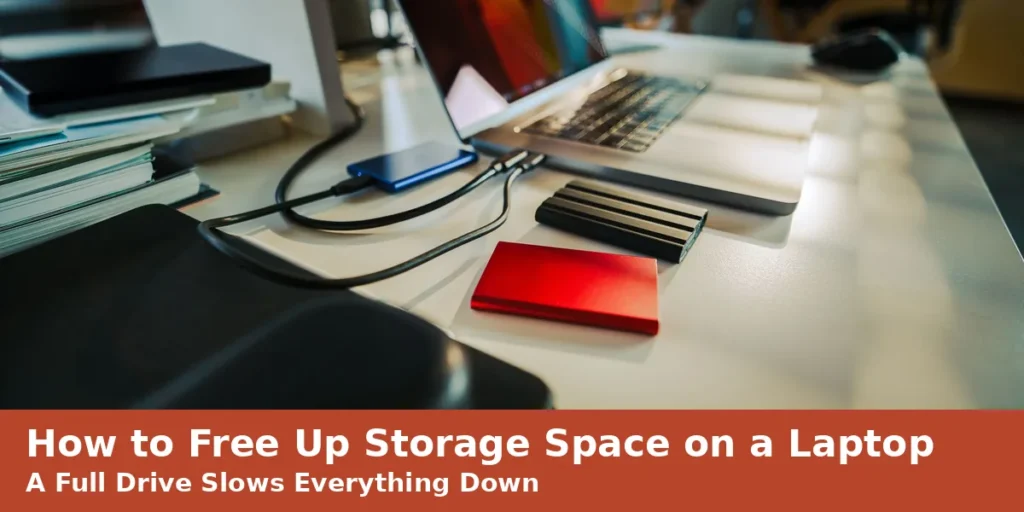
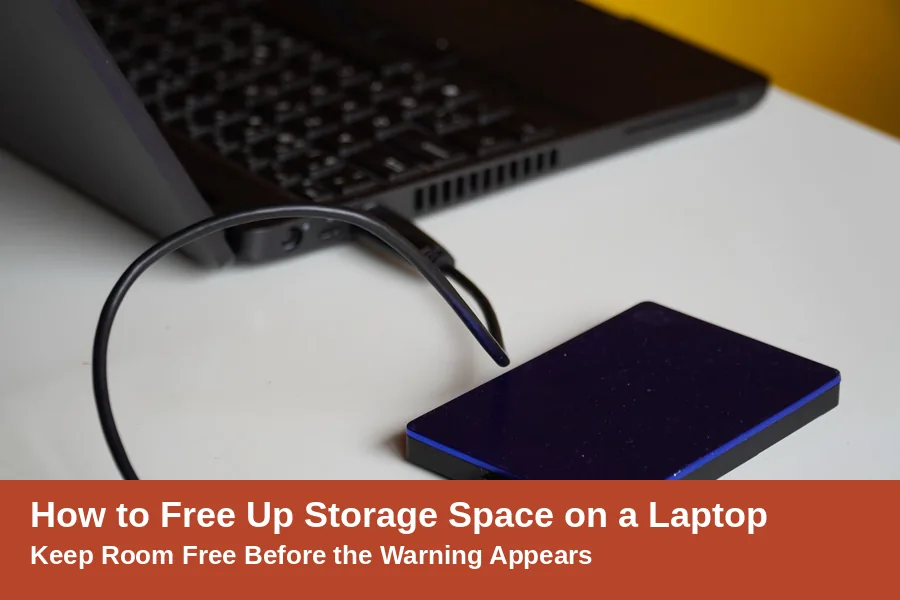
Some files are too precious to delete but too big to keep. Family videos, photo libraries and music collections fit that pattern. An external drive gives them a home off the laptop. You keep the files and win the space back.
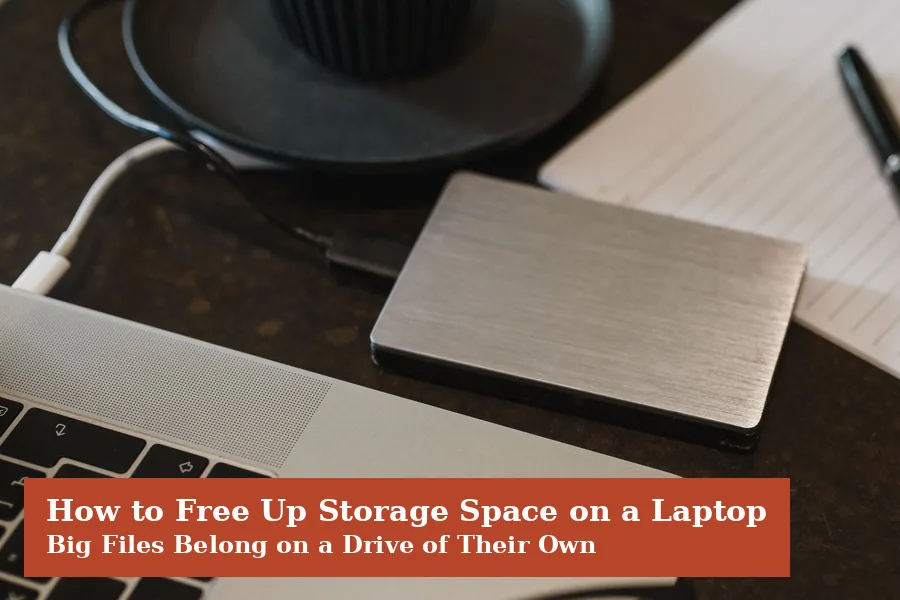
- Connect the external drive or SD card.
- Open the folder holding the large files.
- Select the files, then choose Cut on the ribbon.
- Open the external drive and choose Paste.
- Check the files open correctly from the drive.
Move files, but never leave only one copy of anything precious. Our guide to how to back up your computer shows a simple routine. A single drive can fail, get lost or get stolen.
Trim Old Restore Points and the Previous Windows Folder
Windows keeps safety copies that quietly eat into the drive. Restore points and the previous Windows installation are the usual pair. Disk Cleanup can clear both through its system files view. The Microsoft Support guide walks through the same screens in full.
- Open Start and search for Disk Cleanup.
- Select your main drive, usually C:.
- Choose Clean up system files.
- Open the More Options tab at the top.
- Under System Restore and Shadow Copies, choose Clean up.
That clean-up removes older restore points and keeps the newest one. Dell also shows a slider that caps restore point space. Lowering it stops the copies growing back so fast. The table below sums up the three hidden space users.
| Hidden space user | Where you clear it | Watch out |
|---|---|---|
| Previous Windows installation | Disk Cleanup, system files | No way back to the old version |
| Old restore points | Disk Cleanup, More Options tab | The newest point stays in place |
| Hibernation file | Command Prompt, powercfg /hibernate off | Hibernate vanishes until switched back on |
Let OneDrive Files On-Demand Carry the Bulky Folders
Files On-Demand keeps the full file in your OneDrive account online. A smaller placeholder sits on the laptop instead of the full copy. You still open files from the same folders as before. They download again only when you actually open them.
Turn it on inside the OneDrive settings on your laptop. Photos and video folders are the best first candidates. Keep files you need on trains or flights stored locally. A placeholder is no help with no signal.
A second setting helps laptops that have two drives fitted. Windows can save new apps, documents and photos to another drive. Find it under Advanced storage settings, where new content is saved. New files then stop piling onto the full drive.
Turn On Storage Sense and Stop Chasing Space
Storage Sense repeats your clear-out automatically from now on. It removes temporary files that apps no longer use. It can also empty the Recycle Bin on a schedule. Microsoft built it for exactly this slow refill problem.
- Open Settings, then System, then Storage.
- Switch on Storage Sense.
- Open its settings and choose a Recycle Bin age.
- Pick how often it runs, such as monthly.
Space alone does not fix every slow laptop, though. Other habits slow it down in different ways. If yours still crawls after the clean-up, try the next fix. Our guide to how to speed up a slow laptop covers startup apps and background clutter.
Ten Minutes a Month Beats One Panic a Year
You now know how to free up storage space on a laptop safely. The order matters more than any single trick used. Check first, let Windows suggest, then move the big files. Finish by switching on the automatic guard.
Open the Storage screen once a month and glance at the bar. Keep a clear margin free so updates always fit. Small habits like this stop the warning returning. Your laptop stays quicker, and updates stop failing silently.
This guide sits with our other plain English fixes in the Tech archive. The same section holds our pillar guide on how to become a tech founder. It covers a very different kind of upgrade. Work through one fix today and check the free space tonight.
Frequently Asked Questions
Is it safe to delete temporary files?
Yes, temporary files are generally safe to delete from a laptop. Apps and Windows create fresh ones whenever they need them again. Files still in use are skipped automatically during a clean-up. Empty the Recycle Bin afterwards so the space actually returns.
How much free space should a laptop keep?
Aim to stay above the low space warning line. Dell notes that Windows warns when a drive falls under 10 percent free. Feature updates also need room to download and install properly. A clear margin above that line keeps both problems away.
What takes up the most space on a laptop?
Videos, music, photos and documents usually hold the most space. Microsoft names those folders as the home of the largest personal files. Games and unused apps often outweigh them all, though. The Storage screen shows your own biggest category in seconds.
Can I delete the Windows.old folder?
Yes, Disk Cleanup can remove the previous Windows installation for you. Microsoft notes it appears as a deletable system file after an upgrade. Deleting it removes your option to return to the older version. Wait until the new version runs happily first.
Will freeing up space make my laptop faster?
It can help, especially when the drive sits nearly full. Microsoft links low space with slower performance and failed updates. Space alone will not cure every delay or freeze, though. Startup clutter needs its own clean-up, covered in our slow laptop guide.
Do these steps work on a Mac?
The order works, but the menus and names differ on a Mac. Open System Settings, then General, then Storage to see the breakdown. Apple shows recommendations above the category bars there. Empty the Trash afterwards, since deleted files hold space until then.