The short answer is simple. Copy your files to an external drive first. Then add a second copy in the cloud. This guide shows how to back up your computer in about twenty minutes.
Most people think about backups only after a drive dies. By then, the photos and letters on it are gone. A calm half hour now beats a panicked week later. This guide keeps every step plain and jargon light.
Key Takeaways
- You can learn how to back up your computer in one sitting.
- Backups copy the files you cannot download again.
- Three copies, two devices, one copy away from home.
- Windows File History and Mac Time Machine run on their own.
- Test one restore before the day you truly need it.
What Actually Needs a Backup?
Back up anything you cannot download again. That means documents, photos, videos and emails you wrote or took yourself. Apps and games can be installed again from the store. Your own files exist in one place only, this one machine.
Music and films bought online usually sit in your account too. You can fetch them again after a crash. Scans of paper letters and certificates are different. Lose the scan, and the digital copy is gone for good.
| What to back up | Why it matters |
|---|---|
| Documents and spreadsheets | Work and records you cannot recreate |
| Family photos and videos | No shop sells these back to you |
| Desktop and Downloads folders | Where stray files quietly gather |
| Email and contacts | Addresses and threads you still need |
| Bookmarks and sign-in details | Accounts take hours to rebuild by hand |
Do a quick hunt before the first backup run. Old photos hide in Downloads and half-forgotten folders. Email attachments also hold copies of contracts and bills. Five minutes of hunting now saves real regret later.
The 3-2-1 Rule in Plain English
Keep three copies of anything that matters. Store them on two different devices. Keep one copy away from your home. The National Cyber Security Centre calls this the 3-2-1 rule.
The originals stay on your computer at home. A second copy sits on an external drive. A third copy lives in a cloud account. That is the whole shape of how to back up your computer safely.
- Unplug the external drive between backups.
- Ransomware can scramble a drive that stays connected.
- A cloud copy survives fire, flood and burglary at home.
One copy is a hope, not a backup. Two copies on one desk still share one fate. The offsite copy breaks that shared fate.
How to Back Up Your Computer on Windows
Windows has two free tools for the job. File History copies your folders to an external drive. The Windows Backup app sends folders, apps and settings to OneDrive. Either one beats copying files by hand each week.
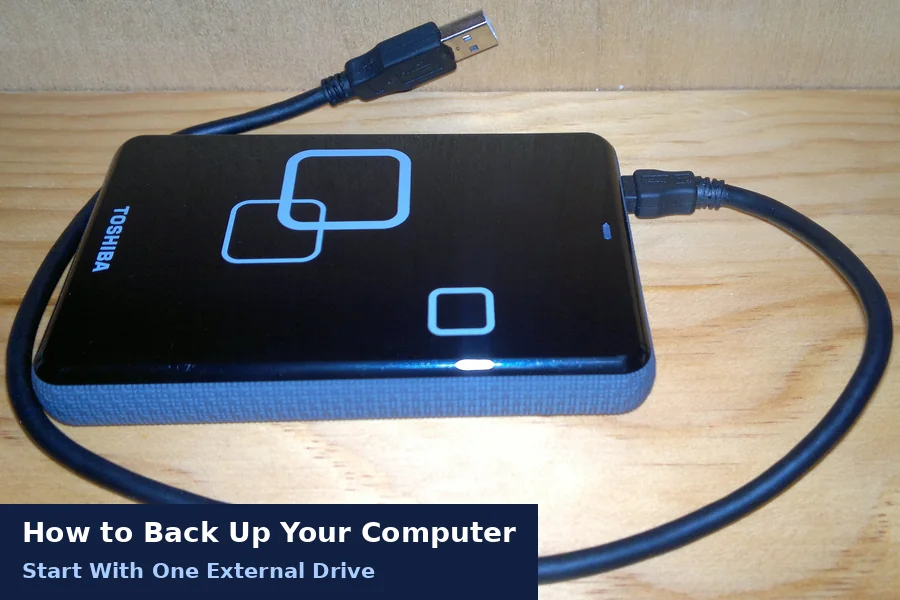
- Plug an external drive into the computer.
- Open Settings and choose Backup.
- Choose Add a drive and pick your drive.
- Turn on automatic backups for your files.
- Open More options and check the folder list.
- Leave the drive plugged in for the first full copy.
File History then saves changed files every hour by default. You can keep those older versions for one month, two years or forever. It covers Desktop, Documents, Downloads, Music and Pictures. The restore button sits in the same options screen.
Once a year, consider a system image too. It copies Windows, programs and settings as one snapshot. Find it under Backup and Restore in Control Panel. A system image helps most after a total drive failure.
Backing Up a Mac With Time Machine
Every Mac carries a built-in tool called Time Machine. Connect an external drive and open Time Machine settings. Turn it on, and the first full copy starts. After that, it only copies files that changed.
- Open System Settings, then General, then Time Machine.
- Choose Add Backup Disk and select your drive.
- Use Back Up Now from the menu bar for a manual run.
- Keep that drive for backups only, nothing else.
Time Machine keeps hourly copies for a day. It keeps daily copies for a month. Older months shrink to one copy each week. When the drive fills, the oldest copies go first.
Add a Cloud Copy as Your Offsite Third
A cloud copy is the easiest offsite copy to run. Services like OneDrive, Google Drive and iCloud store files online. Upload once, and new files follow on their own. Slow broadband is the only real catch here.
Remember that syncing is not quite the same as backup. Delete a file at home, and sync deletes the cloud copy too. OneDrive keeps deleted files in a recycle bin for 30 days. Version history in these services also rescues older drafts.
Guard the account that holds your cloud copy. Use a strong password that you use nowhere else. Turn on two-step sign-in for the account as well. Attackers often aim at backups before anything else.
How Often Should You Back Up?
Back up as often as your files change. Daily changes deserve a daily copy at least. Quiet machines can manage with a weekly run. The honest test is one question: what would yesterday’s loss cost you?
| How you use the computer | A sensible rhythm |
|---|---|
| Work or study most days | Automatic hourly or daily copies |
| Family photos and light use | A weekly copy, plus cloud sync |
| Rarely used second machine | A monthly copy after big changes |
Automatic beats remembered, every single time. File History and Time Machine both run without asking. The catch is that the drive must stay plugged in. A small flash drive can live in the port instead.
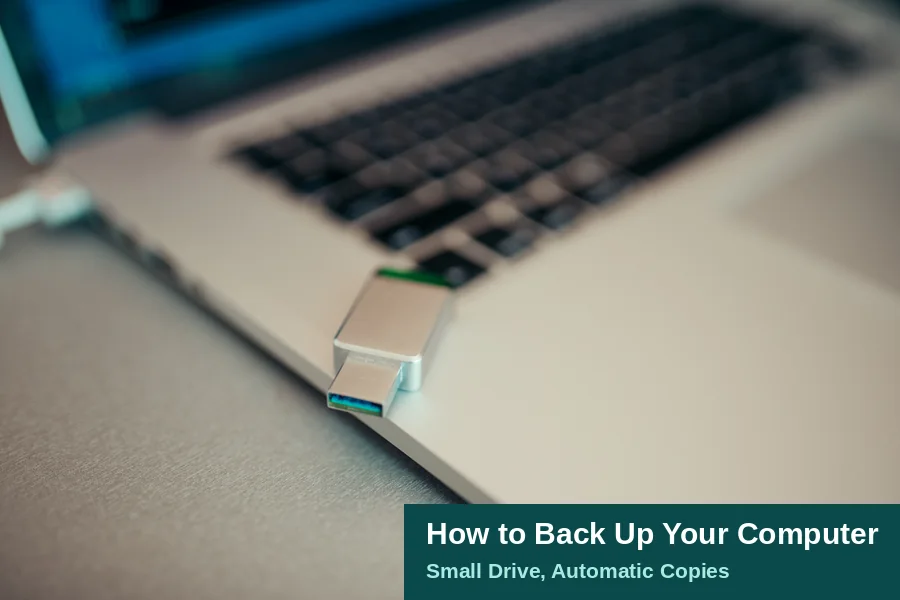
Put a note in your calendar for the monthly check. Drives fail quietly, and old copies age badly. A two-minute glance at the latest backup date keeps the habit honest. Future you sends thanks in advance.
Test the Restore Before You Need It
A backup you never tested is a promise, not proof. The NCSC says to test backups regularly. Learn the restore steps on a calm afternoon. You don’t want that lesson during a real loss.
- Pick one ordinary photo from last month.
- Restore it from the external drive copy.
- Open it and check it looks right.
- Repeat the same test with the cloud copy.
Also keep older versions, not just the latest copy. A fault can hide for weeks before you spot it. By then, a single rolling backup holds the fault too. Versions from last month give you a clean way back.
Twenty Minutes Tonight Beats a Lost Decade
You now know how to back up your computer end to end. One drive, one cloud copy, and one practice restore. That small setup guards years of photos and work. Start with the drive copy tonight, while it is fresh.
More guides wait in our Tech archive, from daily fixes to bigger projects. The pillar explains how to become a tech founder in plain steps. Both sit alongside this guide in the same section.
If a machine already runs slowly, start with how to speed up a slow laptop. A dead machine is a different job entirely. Work through how to fix a laptop that won’t turn on instead.
Frequently Asked Questions
How much does it cost to back up a computer?
The tools cost nothing, since Windows and Mac include them free. You only pay for storage space. An external drive is a one-off buy, while cloud space rents by the month. Many people start with a drive and free cloud space.
What size external drive do I need for a backup?
Pick a drive at least twice as big as your files. Version history eats space faster than people expect. A 1TB drive covers most home computers today. Bigger photo and video libraries deserve 2TB or more.
Is cloud storage alone a good enough backup?
Cloud storage alone leaves one gap: sync copies mistakes too. Delete a file, and the deletion travels to the cloud. Pair the cloud with an external drive at home. That pairing gives you speed, history and an offsite copy.
How long does the first backup take?
The first backup copies everything, so it takes the longest. A full home computer can take a few hours over USB. Later backups copy only changed files and finish in minutes. Leave the machine plugged in and let it run.
Can I back up to a USB flash drive instead?
Yes, for a small set of files, a flash drive works. File History accepts one as its backup drive. Flash drives are easy to lose, though, and hold less. Treat one as a spare copy, never the only copy.
What happens if my backup drive fails too?
That is exactly why the rule asks for three copies. One failure still leaves two copies standing. Drives kept in different places rarely fail together. Check each copy now and then, and replace tired drives early.